- Visit the Learner Web App On your Phone/Tablet and on Desktop/Laptop and login.
- Click on the hamburger icon on the top left of your screen to get access to the side bar.
- Click on explore.
Desktop View

Mobile View

- A list of the courses for that organization will be displayed.
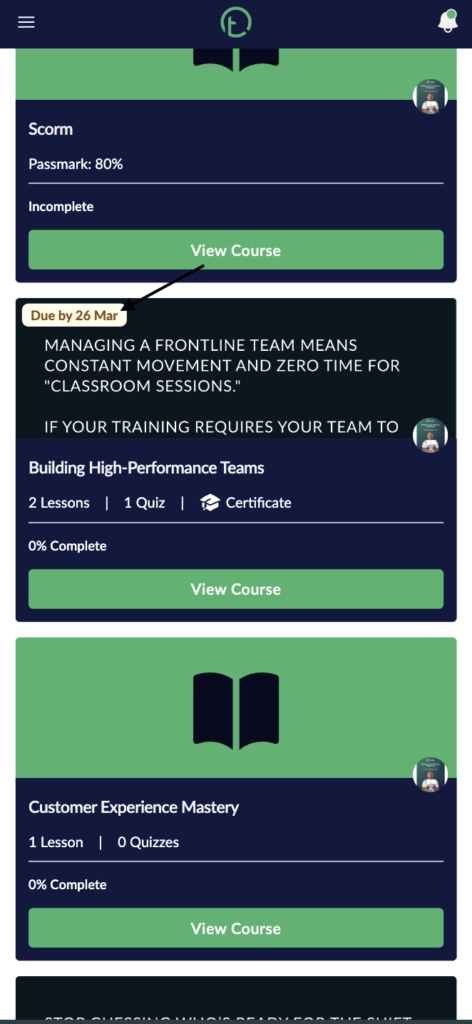
- Look at the course cards, you will notice a label on the top left of the course cards that have due dates set.
- You’ll notice a label with text like “Due by 26 Mar” for example.
Desktop View

Mobile View.
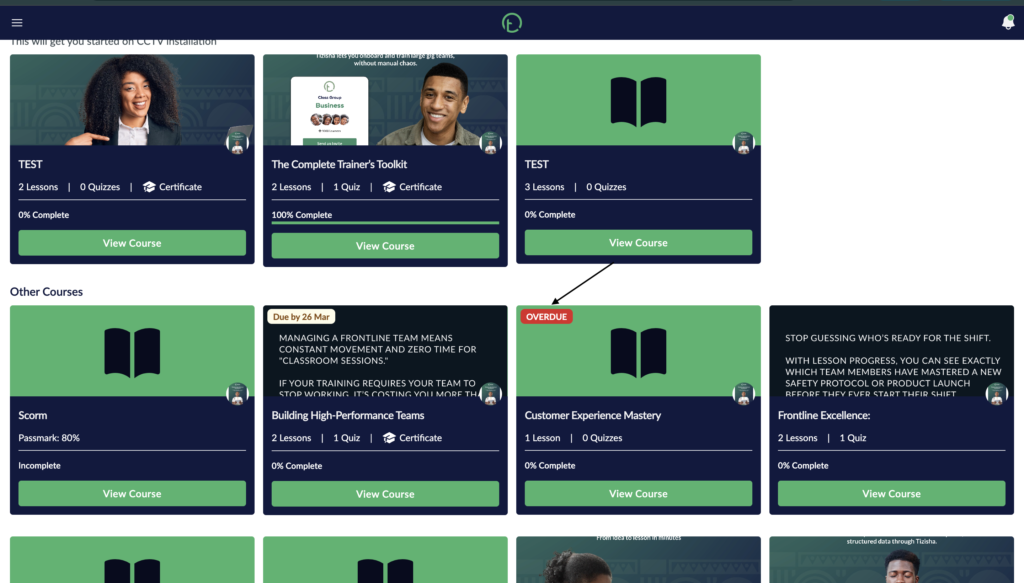
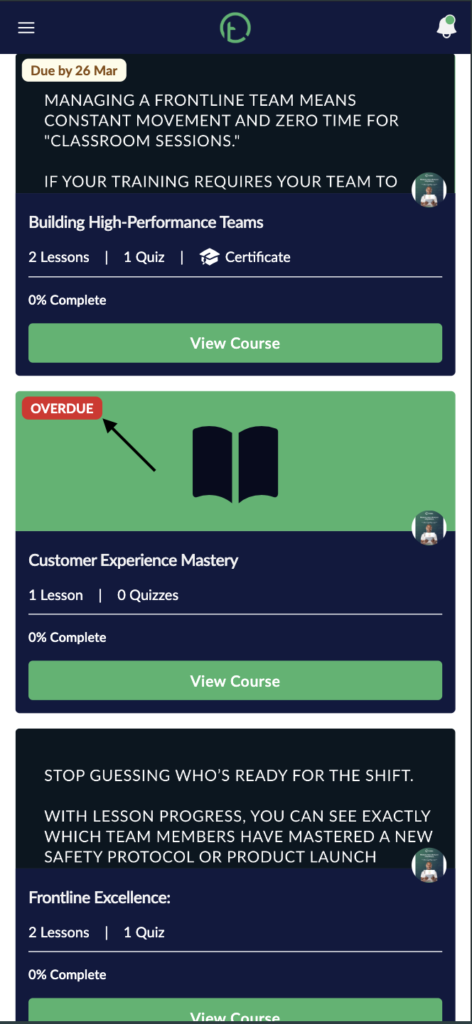
- For courses that are overdue you will see a red label for that.
Desktop View
Mobile View
- Click on the course that has a due date or overdue label.
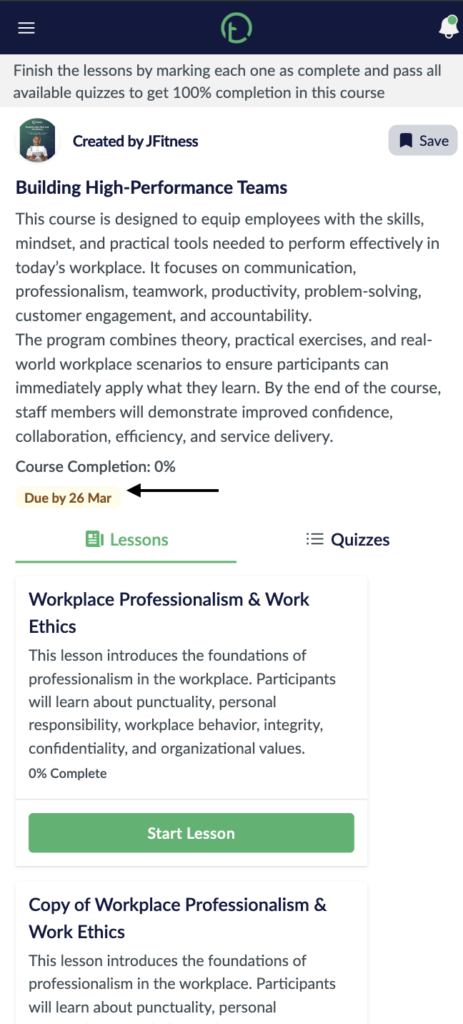
- You will see the due date or overdue label appearing on the course’s detail page as well.
Desktop View

Mobile View