
- Visit the Creator platform On your Phone/Tablet and on Desktop/Laptop and login.
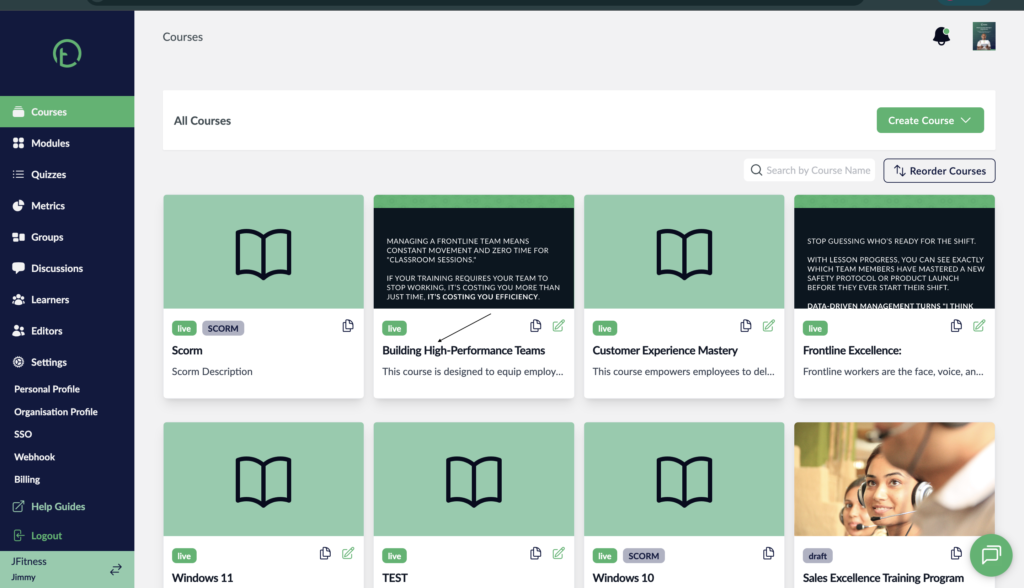
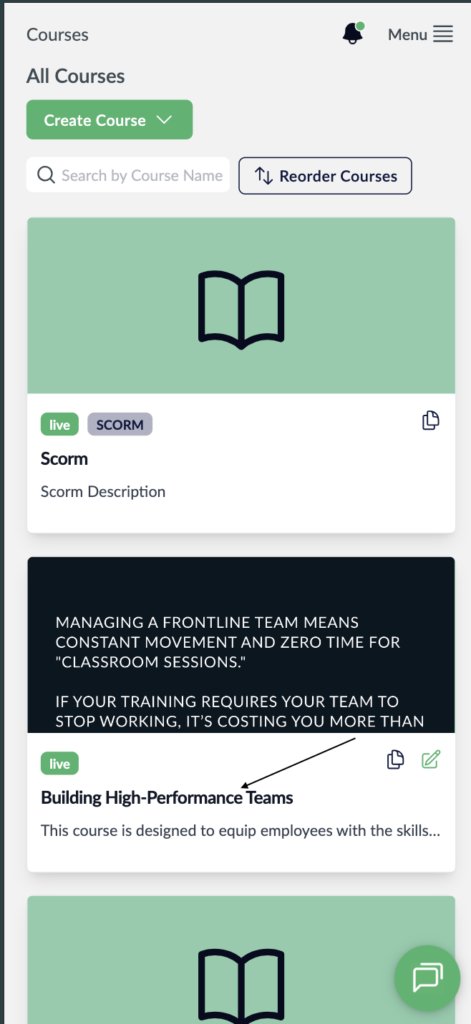
- On the courses page, select a Course.
Desktop View
Mobile View
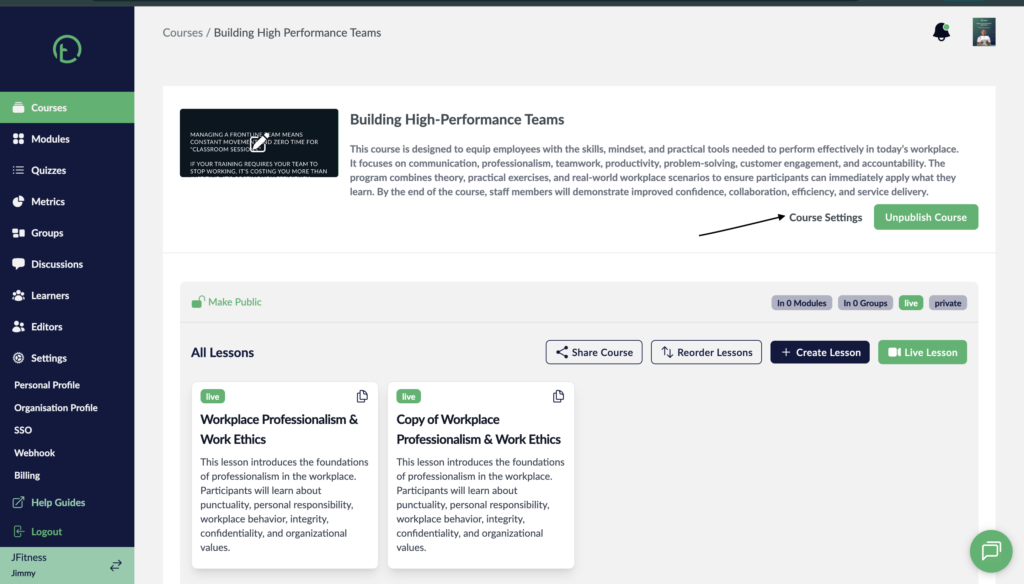
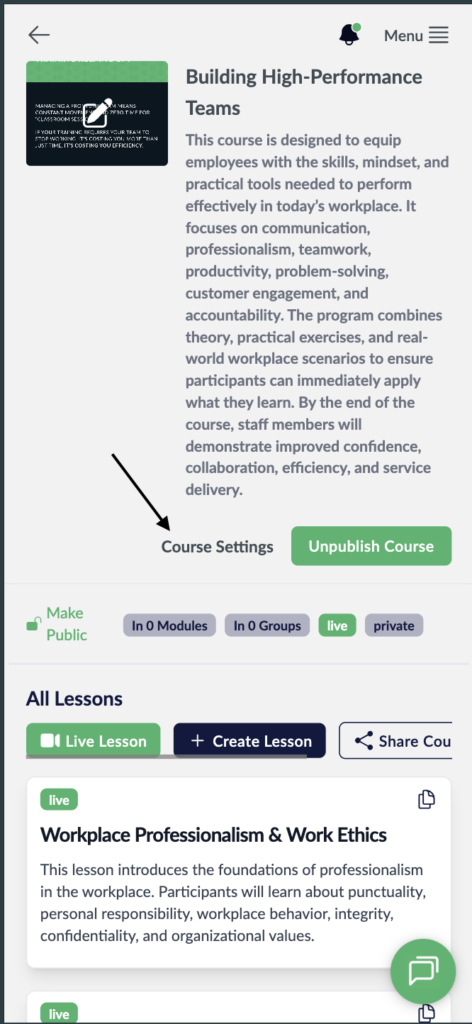
- Click on the Course settings link on the on the right side of your screen, just next to the Publish course button.
Desktop View
Mobile View
- You will see a pop up with some controls and checkboxes on it.
- Look for the one labelled “Set Course Due Date” and click on the checkbox next to it.
- The checkbox will turn Black signifying its been activated.
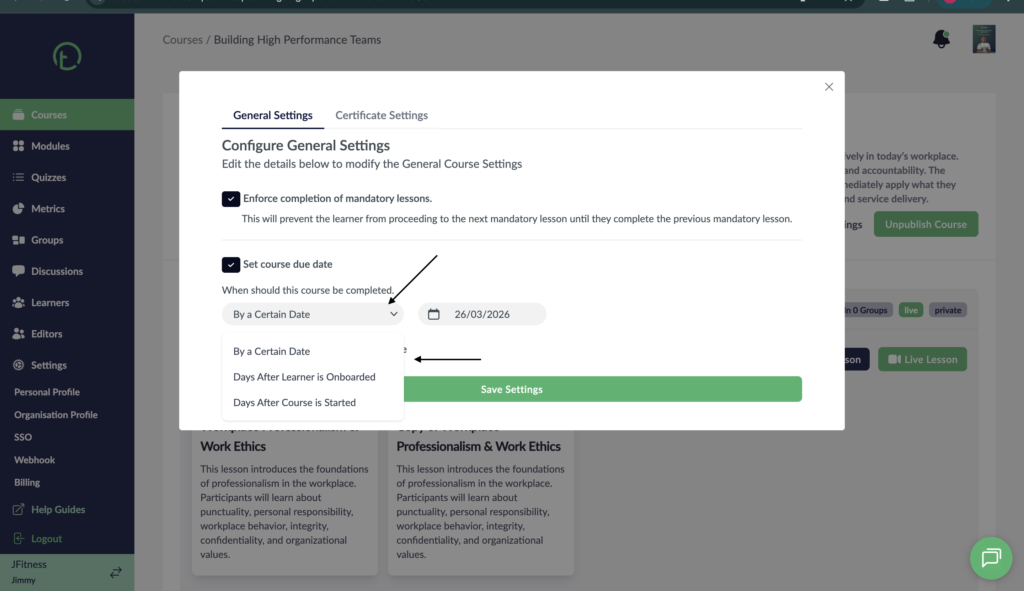
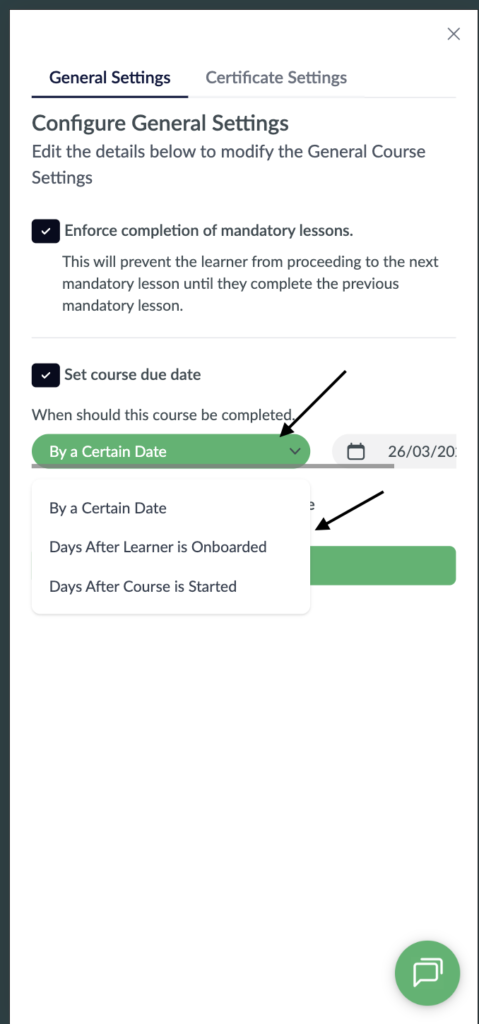
- You will now see more controls associated with this setting. On the dropdown it will be set to “By a certain Date” by default.
- Click on the dropdown to explore more options.
Desktop View
Mobile View
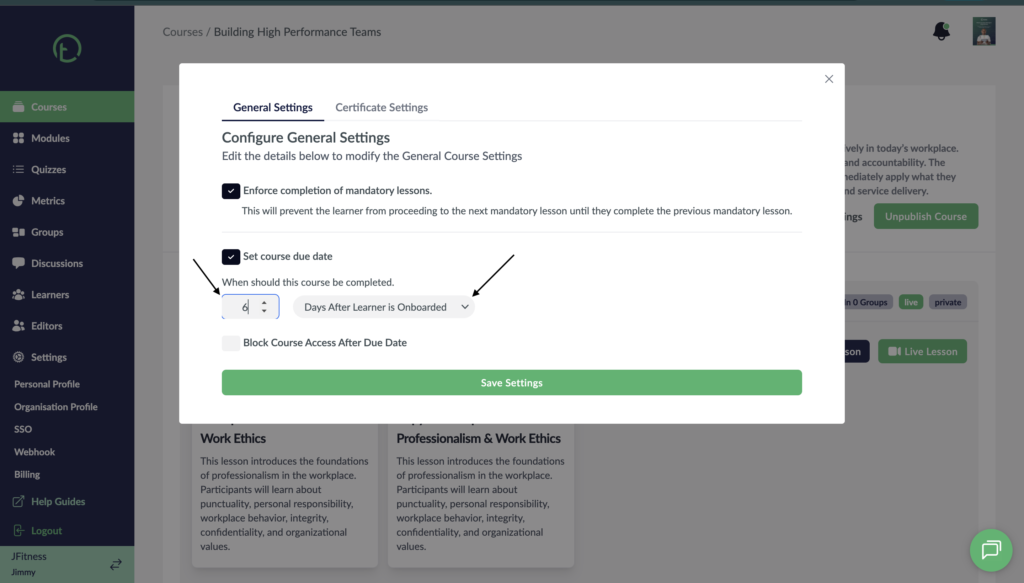
- Select the “Days after learner is Onboarded” option.
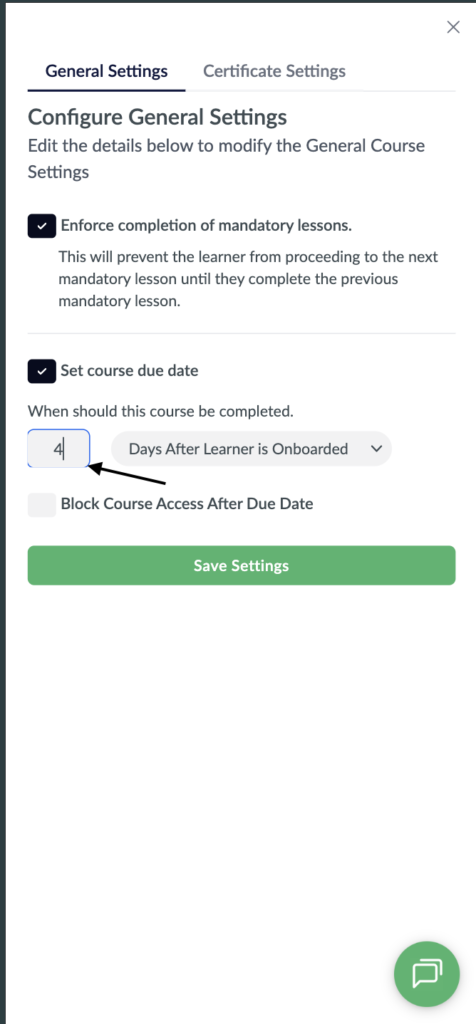
- After selecting this option, you will get an additional control for adding the number of days.
- As you hover your curser you will see some arrows to help you select the number of days or you can manually type it in.
Desktop View
Mobile View
- Once everything is done click save settings.
- You can edit the due date if need be by just going through the process again.