
- Visit the Creator platform On your Phone/Tablet and on Desktop/Laptop and Login
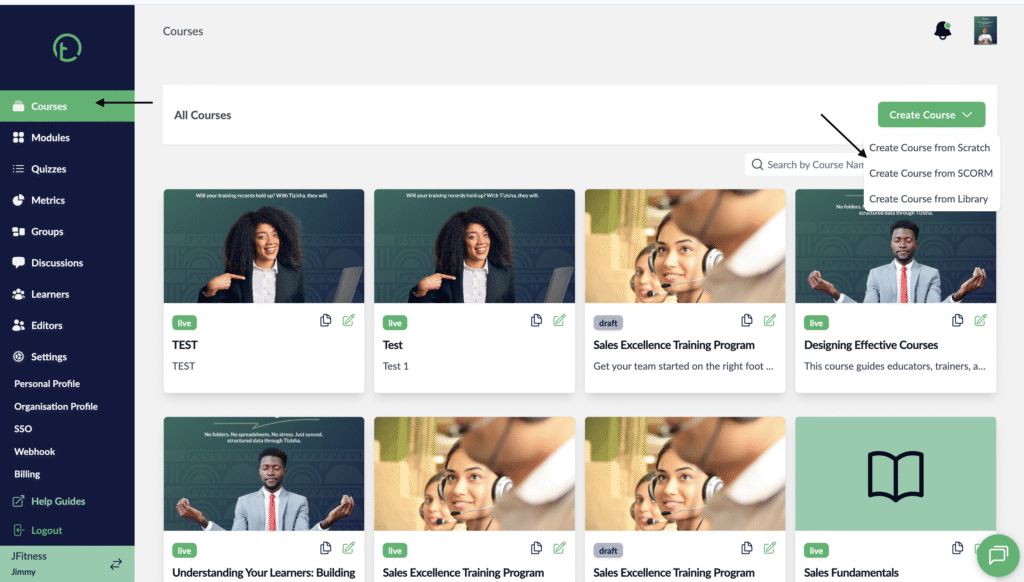
- Navigate to the courses section on the side bar.
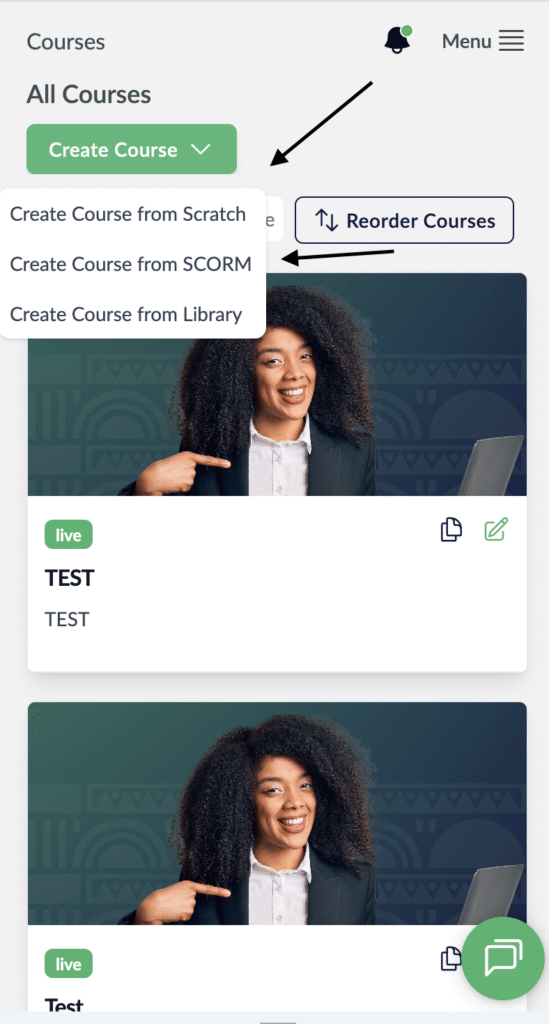
- On the right side of your screen, you will see a dropdown labelled “Create Course”.
- Click on it to find the “Create course from Scorm” option.
Desktop View
Mobile View
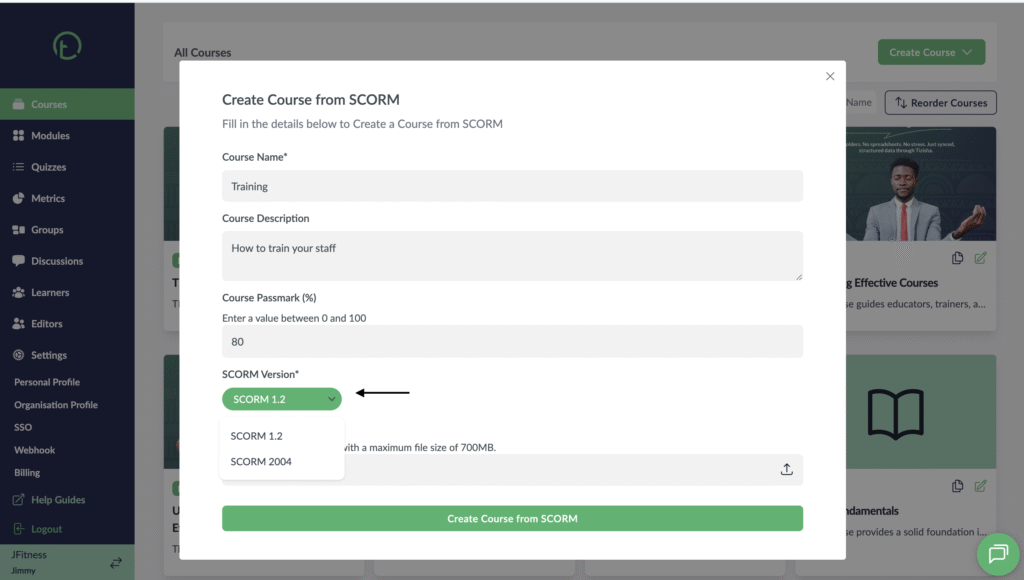
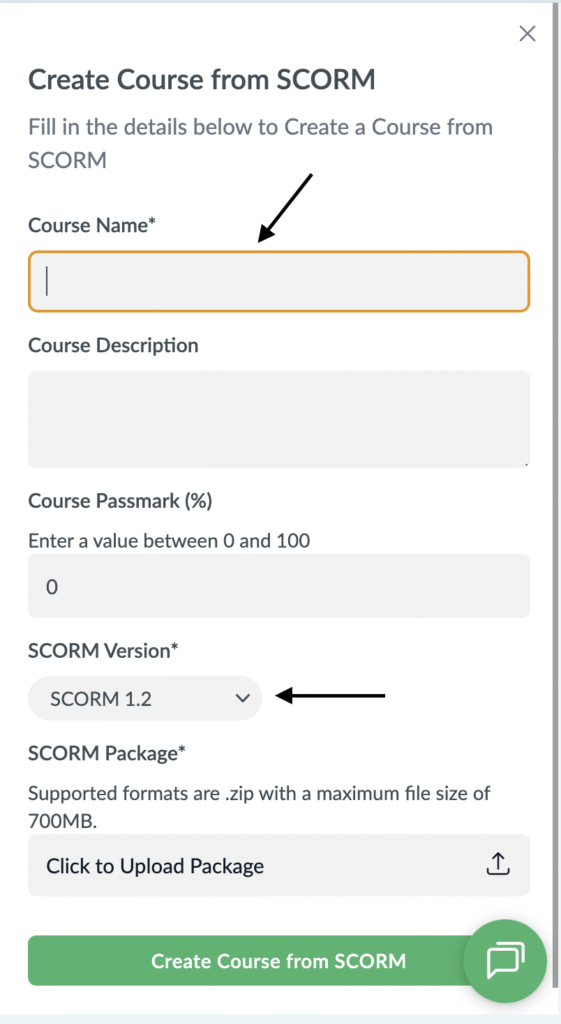
- You will get a pop up where you’ll be required to fill in your Course details like Course name, description, passmark, the Scorm Version (we support Scorm 1.2 and 2004) and finally a section to upload your zipped Scorm Course.
Desktop View
Mobile View
- Find a Scorm package from any resource of your choice, download the zip file, upload the package and click “Create Course from SCORM”.
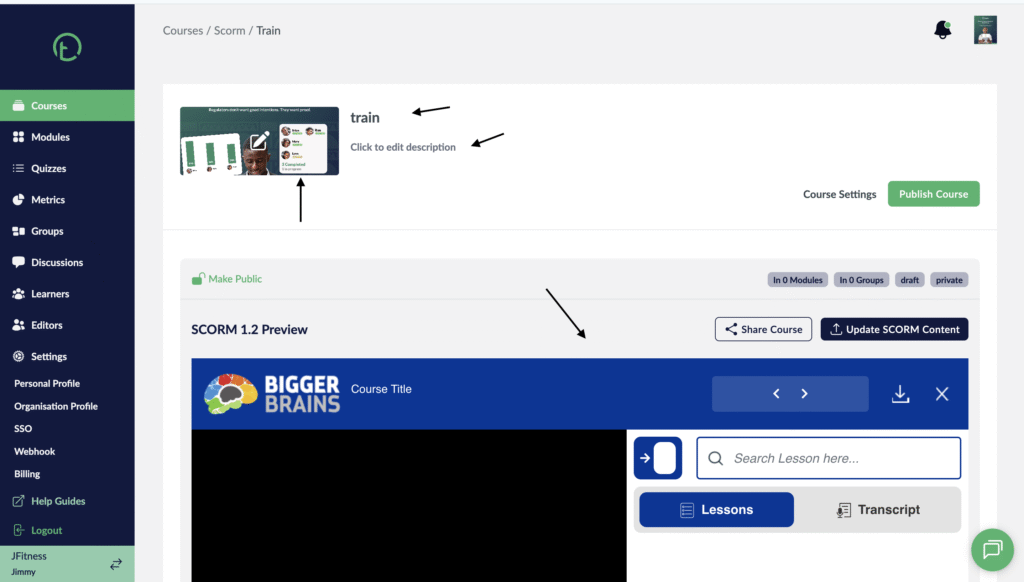
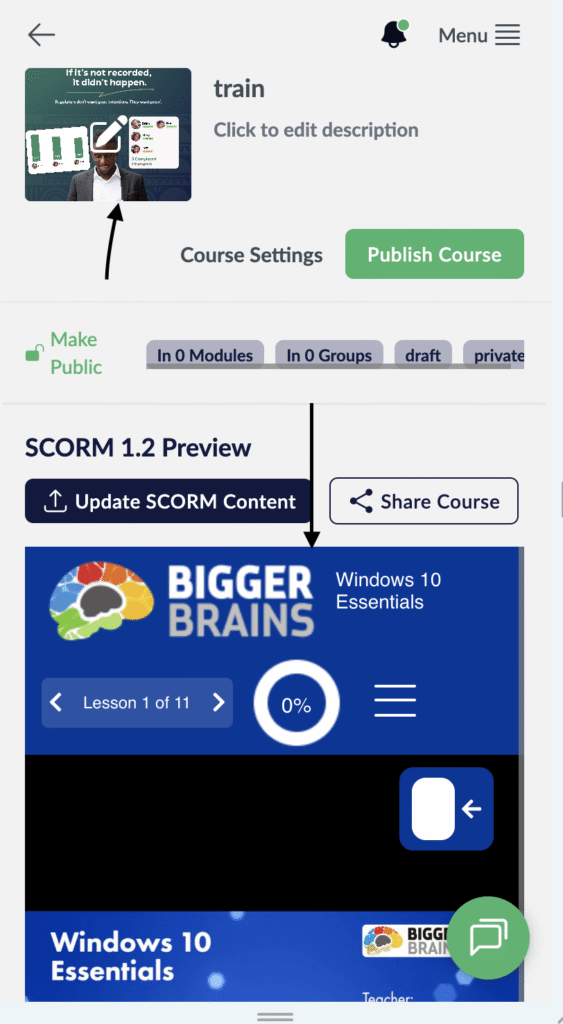
- Once your package is uploaded, you will be redirected to the Course details page where you will see the Scorm package uploaded.
- From this page, you can also update your organization thumbnail, Course name and description.
Desktop View
Mobile View
- Finish the step by publishing the course and now your learners can take on the Scorm Course.