
- Visit the Publisher platform On your Phone/Tablet and on Desktop/Laptop and login.
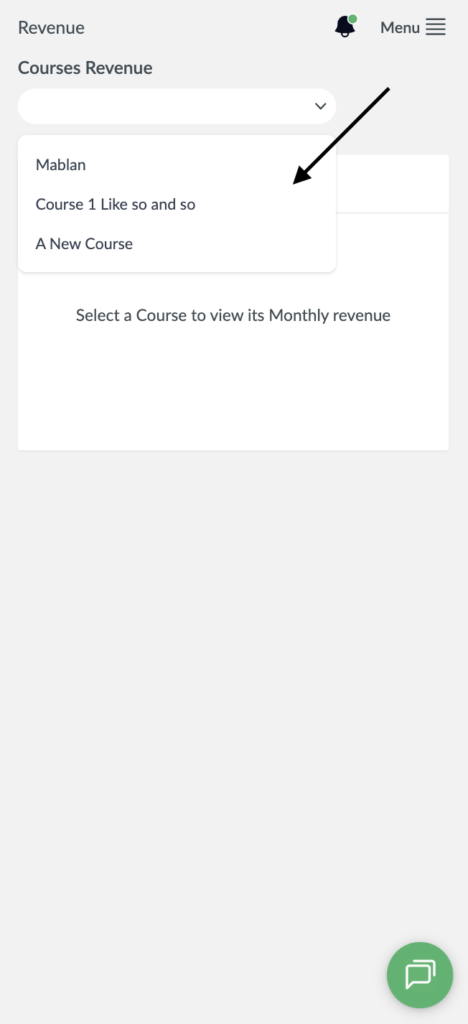
- On the sidebar navigate to the revenue section, you will see a dropdown that allow you to select the course you want to track the revenue for.
- Only courses that have been added to the library after review will be displayed in this section.
Desktop View

Mobile View
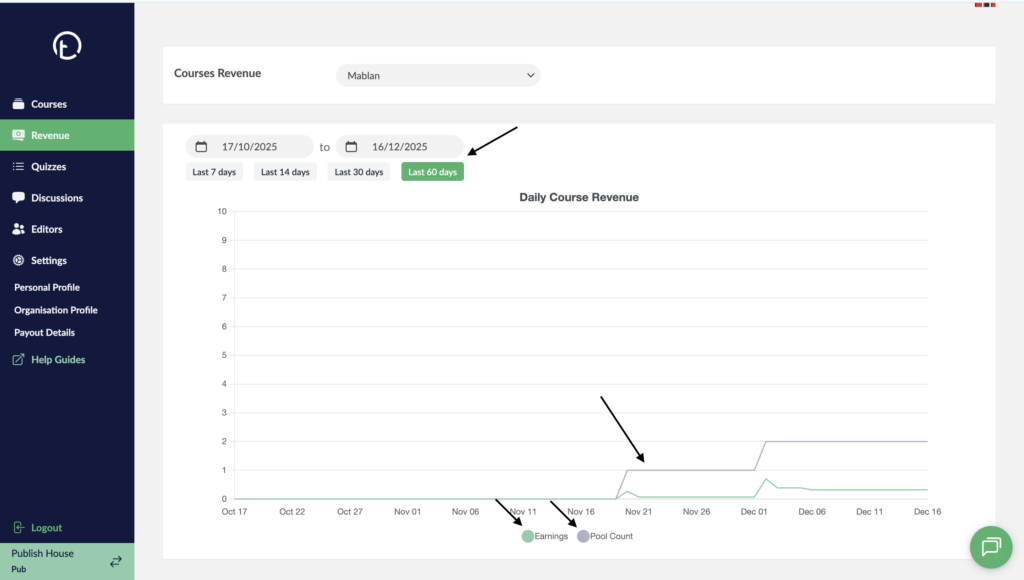
- After selecting you course from the dropdown, a graph will be displayed showing the revenue and Pool Count data using lines. They will be color coded in green and grey respectively.
- Pool count refers to the number of accounts that a course is in while the daily earning shows the total royalty calculation of the course across those pools.
- You can filter the number of days or years to be more specific using the calendar displayed just above the graph. Theres also a tab showing the number of days which you can use as you filter options.
Desktop View
Mobile View

- Hover or click on the lines for the exact figures to be displayed.
