- Visit the Creator platform On your Phone/Tablet and on Desktop/Laptop and Login.
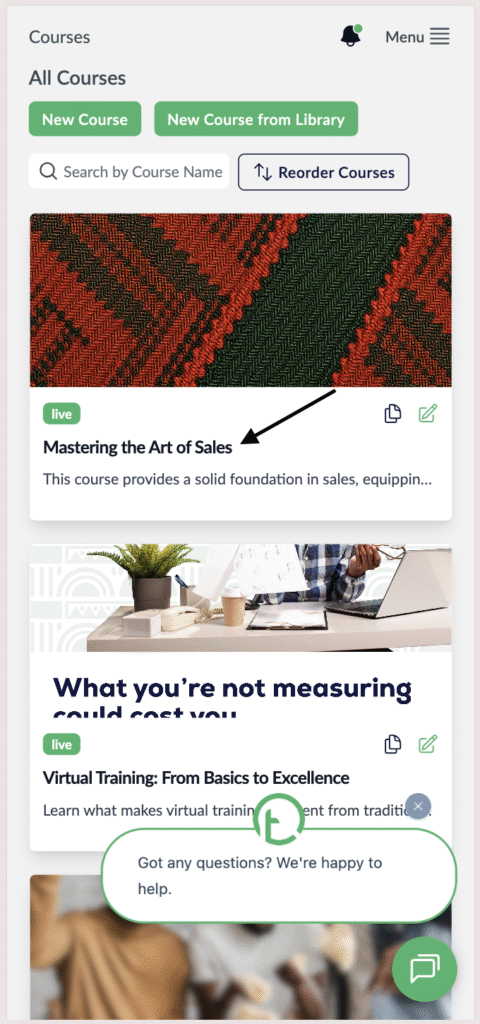
- Click on the Course you want to check poll feedback for.
Desktop View

Mobile View
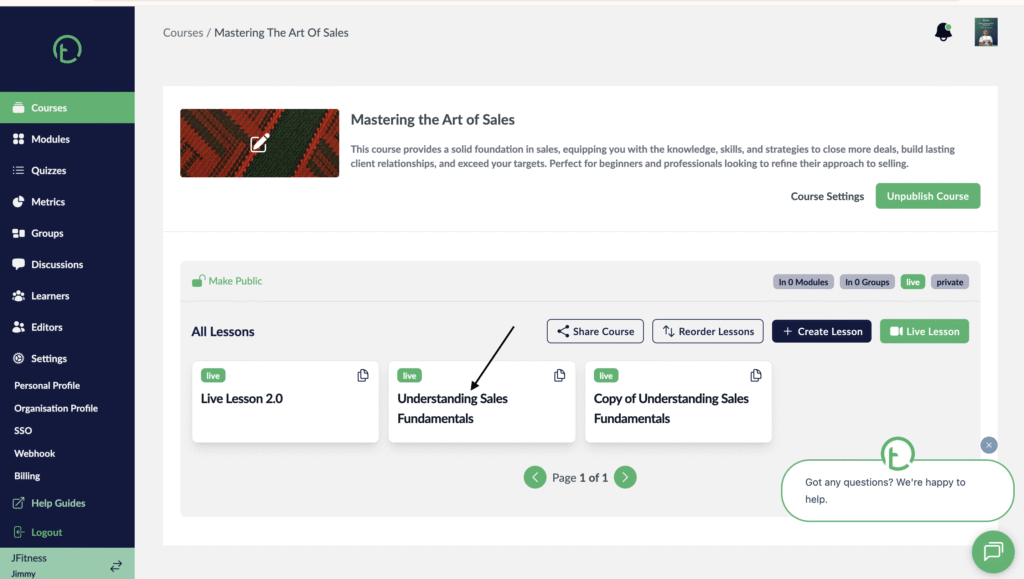
- This will open up all the available lessons in that course
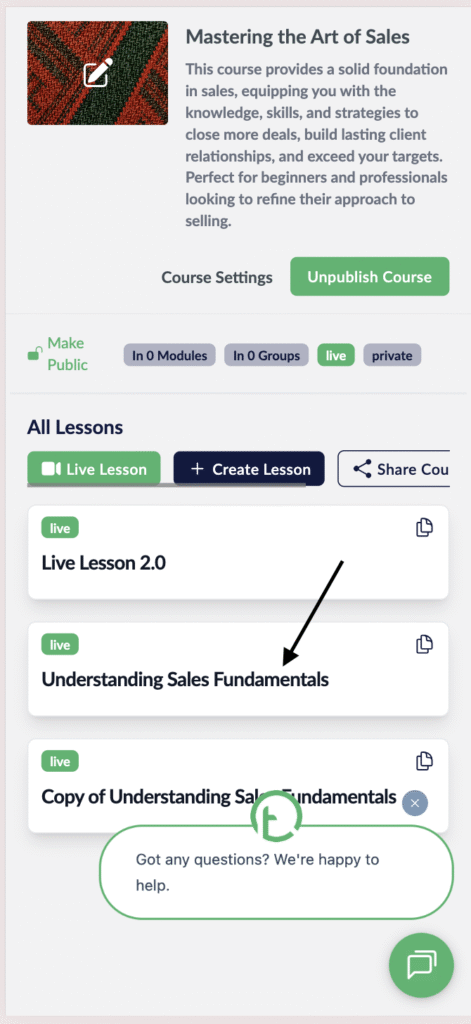
- Click on the lesson you want to check poll feedback for.
Desktop View
Mobile View
- This will open up the lesson details page.
- Click on the lesson Feedback link.
Desktop View

Mobile View
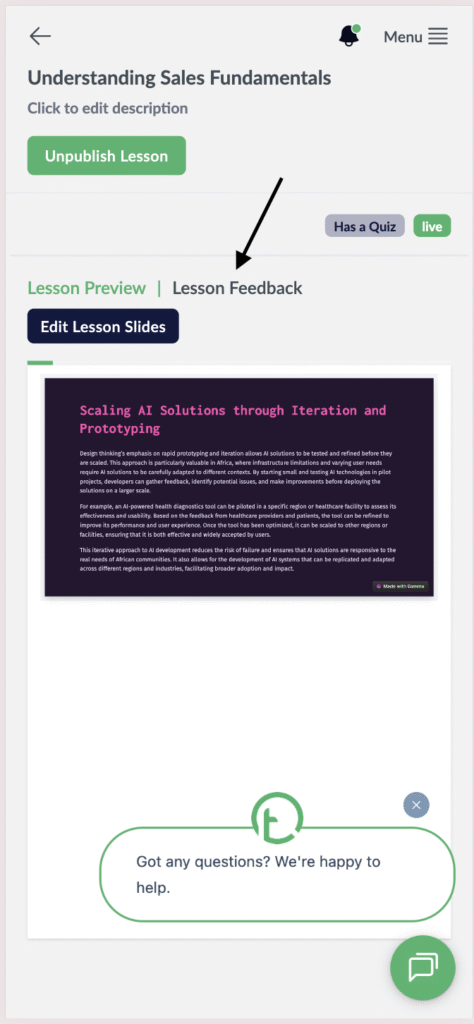
- You will see the default view as “Feedback Options View”which shows feedback by supported feedback controls which is Polls and Text Inputs.
- Under the polls tab, a list of all the polls you added to the lesson will be highlighted here.
- On your right, you will see the poll question, response options and the number of responses on each option.
Desktop View

Mobile View
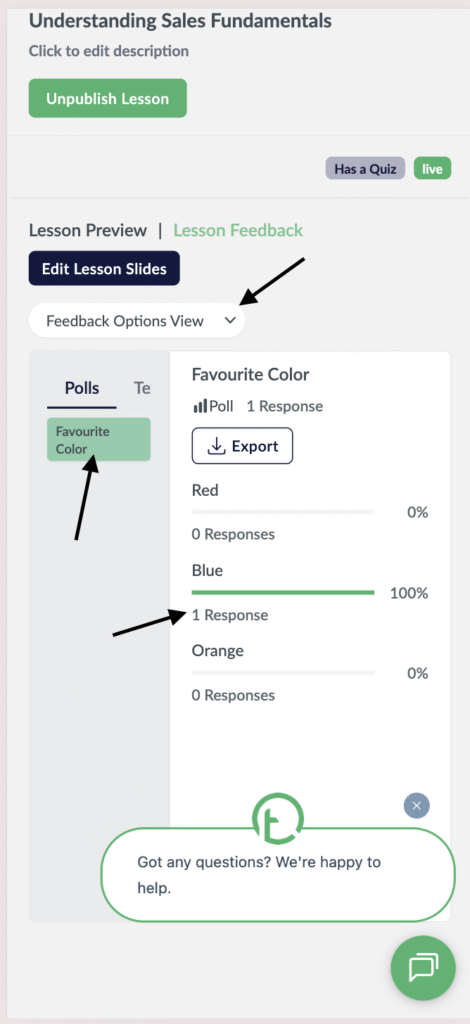
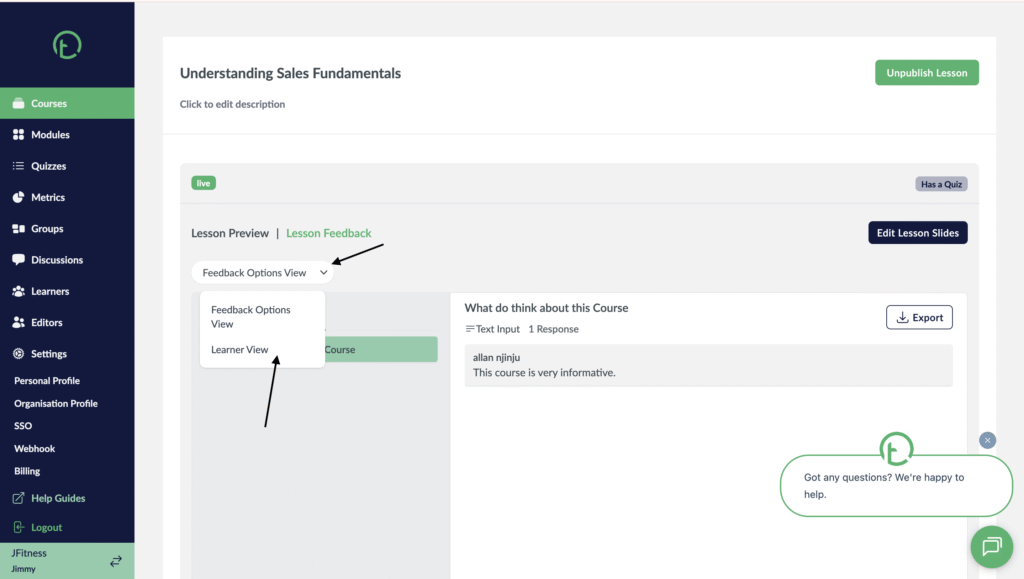
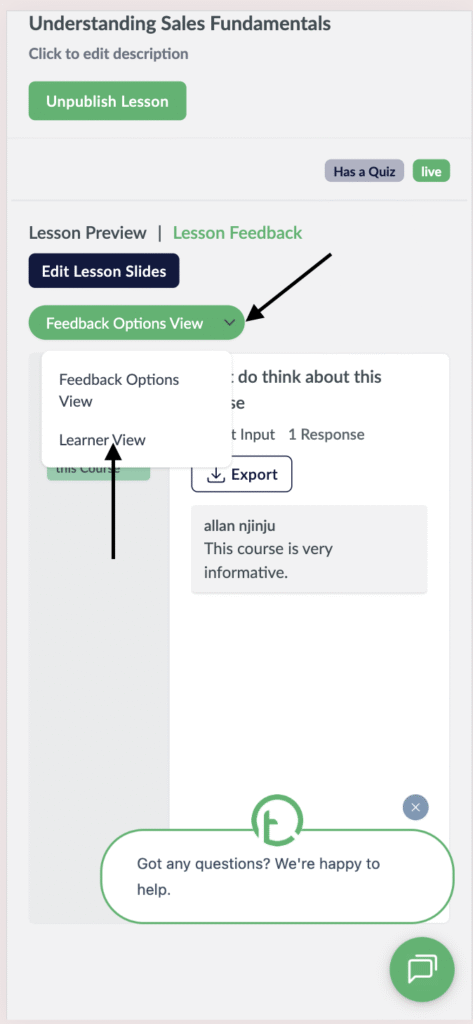
- If you wish to check the feedback responses for each learner for both text input and polls at once, navigate to the feedback options and click on the dropdown.
- You will see the “learner View” option.
- Click on it.
Desktop View
Mobile View
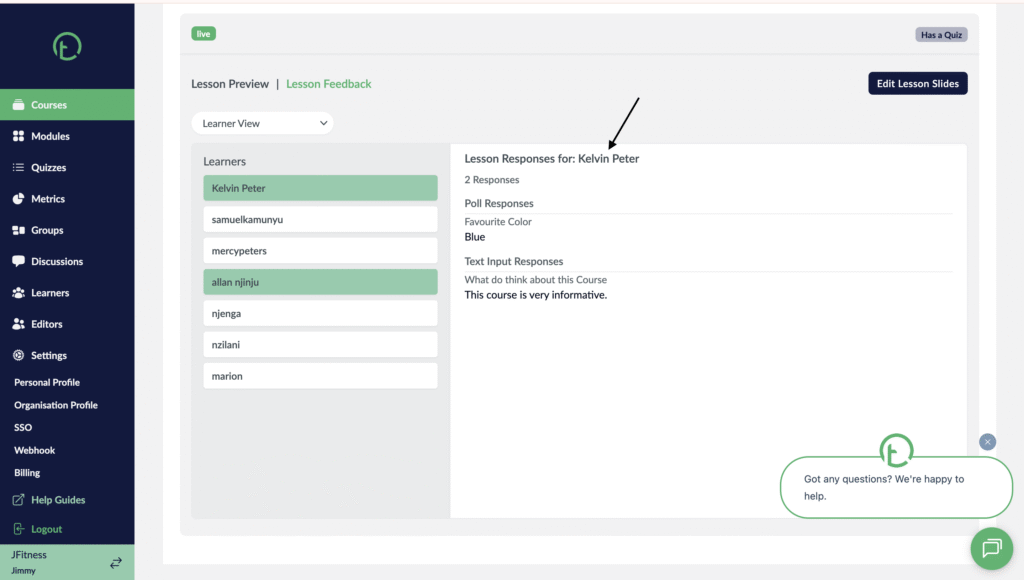
- A list of all the learners who have access to the course will be displayed.
- Click on the learner you want to track responses for.
- On the right side of your screen
Desktop View
Mobile View
