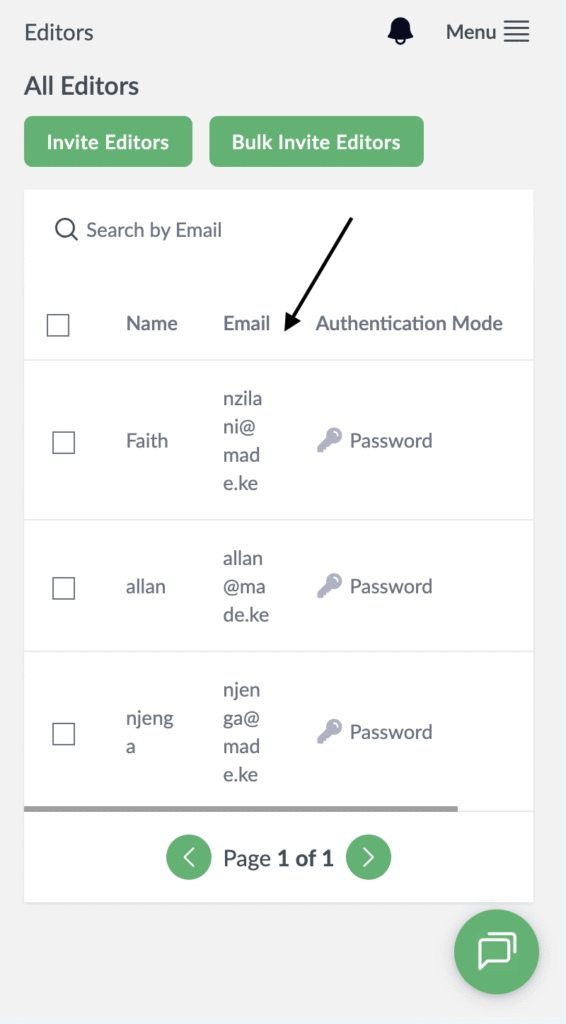
- Visit the Publisher platform On your Phone/Tablet and on Desktop/Laptop and login.
- Navigate to the editors section on the sidebar.
- You will notice we have two button on the top right of your screen to choose from.
Desktop View

Mobile View
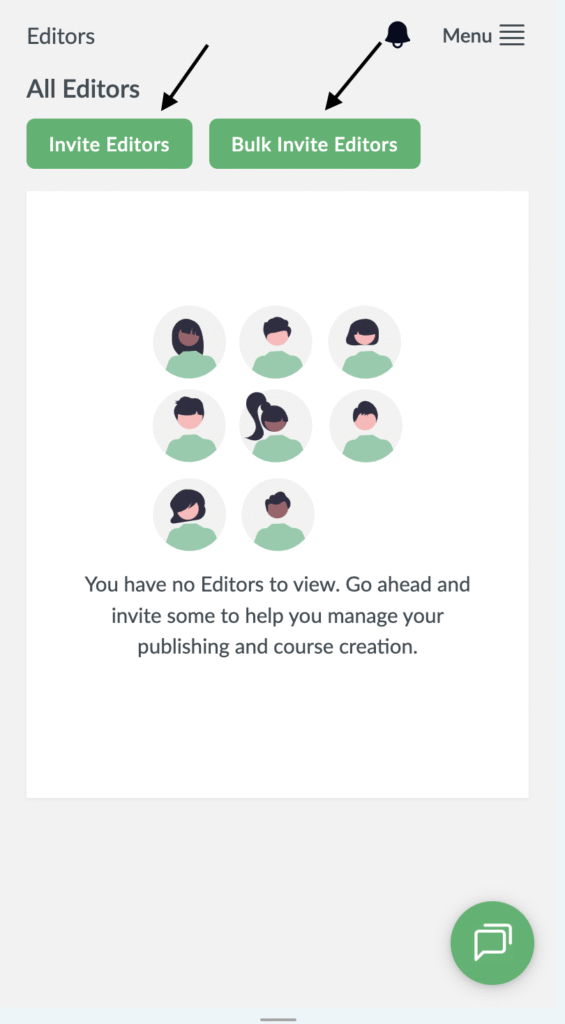
- To invite a smaller set of editors choose the “Invite Editors” option.
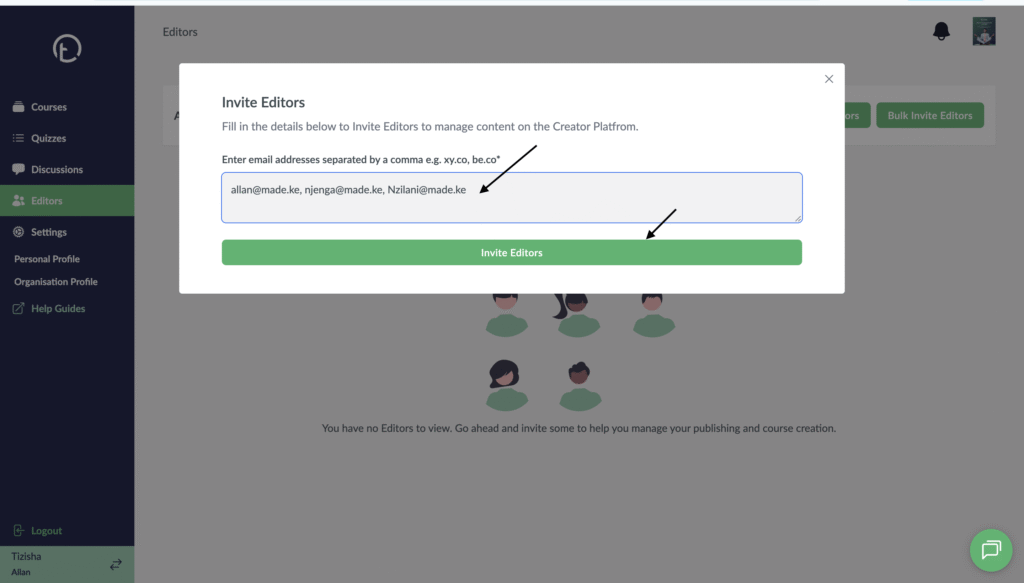
- You will get a pop up dialogue to add you editors with some instructions to guide you how to do that.
- Add an email, comma then add another email.
- Once you are done hit the “invite editors” button
Desktop View
Mobile View

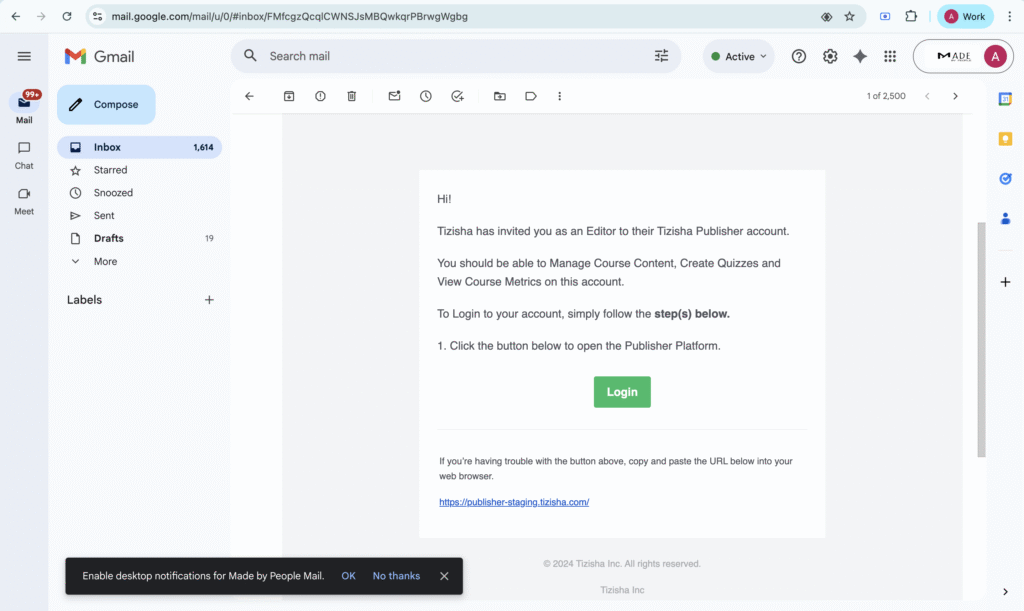
- The editors will get an email notification telling them they’ve been invited to be editors in your organization.
- They will get a link on the email to redirect them to login.
Desktop View
- If you have a bigger group you want to onboard as editors, you will choose the “Bulk invite editors” option.
- Clicking on this will open up a dialogue where you will be required to download a CSV template and fill it.
Desktop View

Mobile View
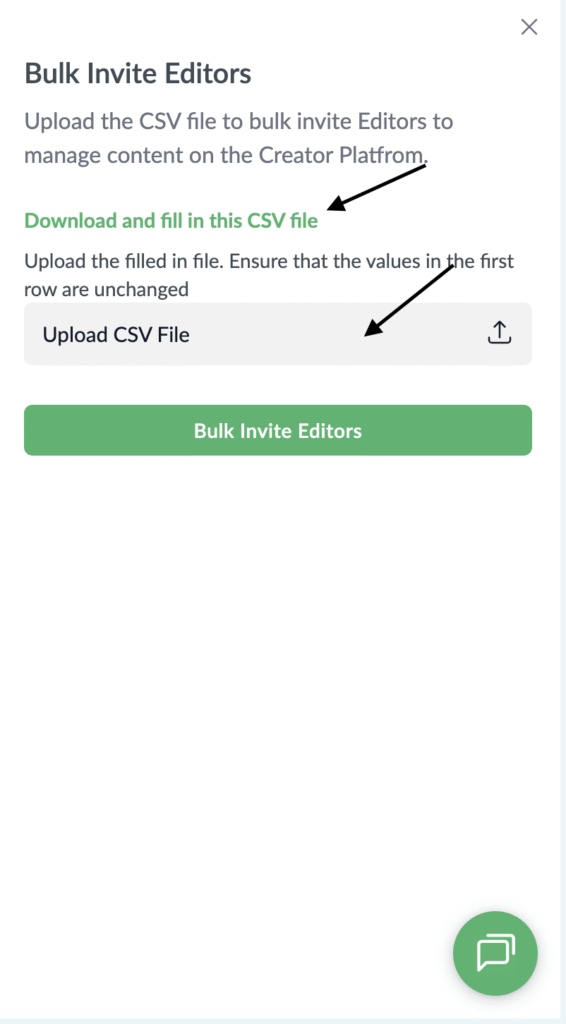
- The CSV file is easy to fill. All that will be required is the email, first name and last name of the person you want to onboard.
- Save and Upload to finish.
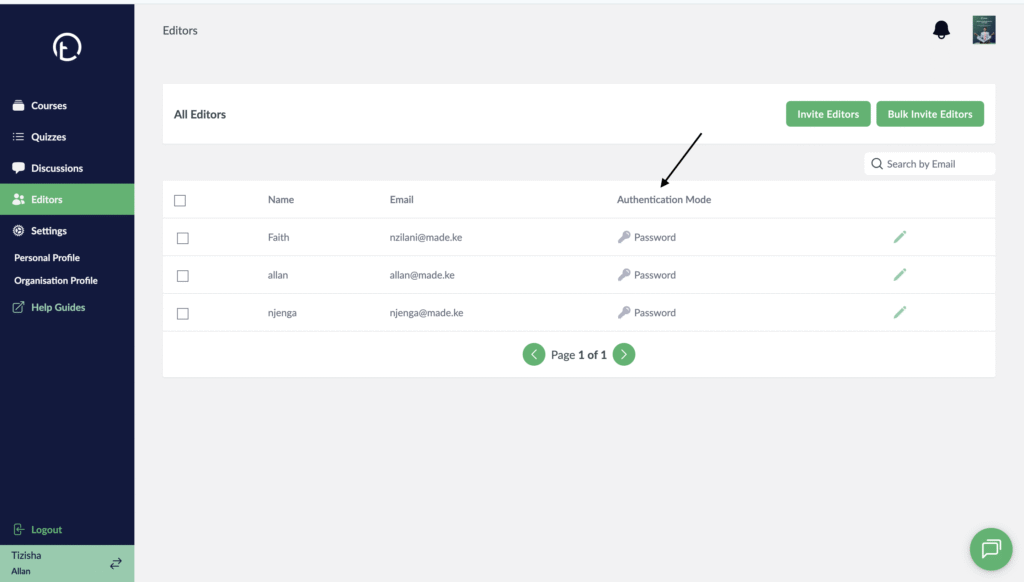
- After uploading the csv file, a list of all the learners you added to the csv file will be displayed on the platform indicating that the onboarding was successful.
- They will get an email notification and proceed to login.
Desktop View
Mobile View