- Visit the Creator platform On your Phone/Tablet and on Desktop/Laptop and login.
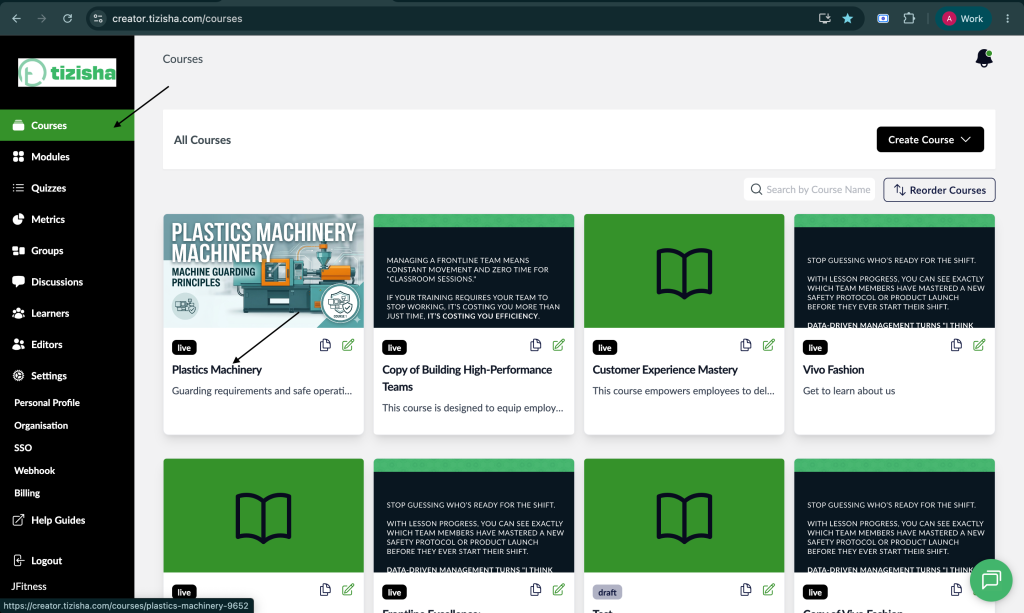
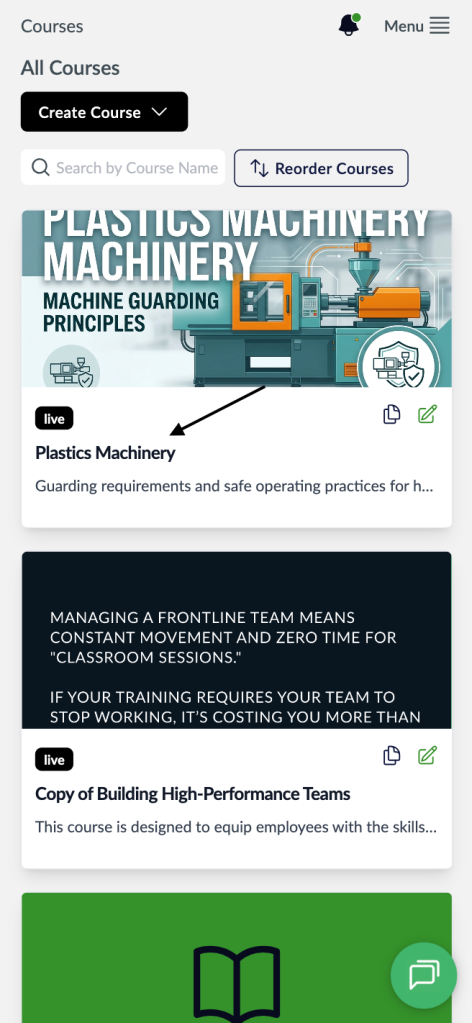
- Navigate to the Courses section on the sidebar and select a course.
Desktop View
Mobile View
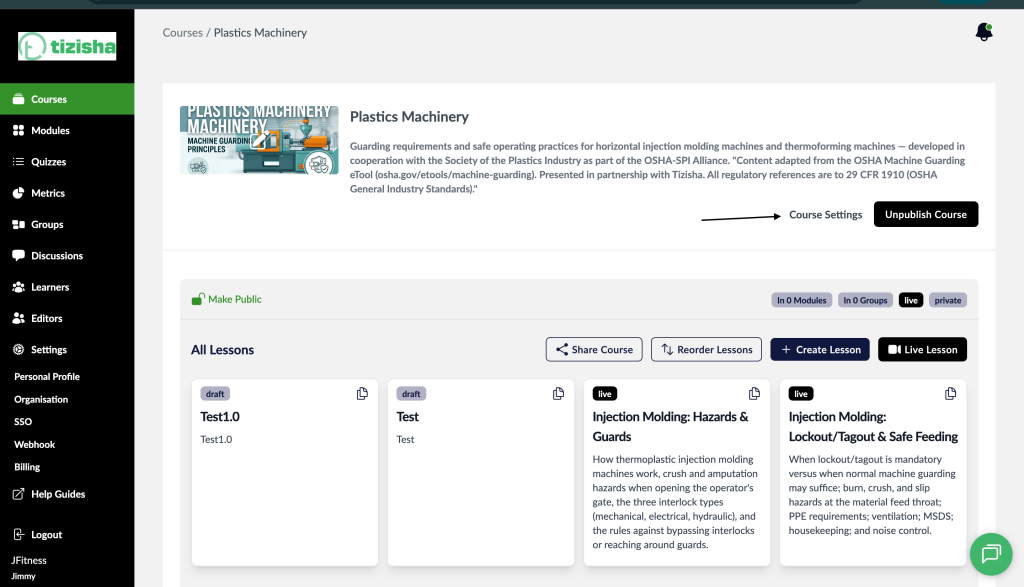
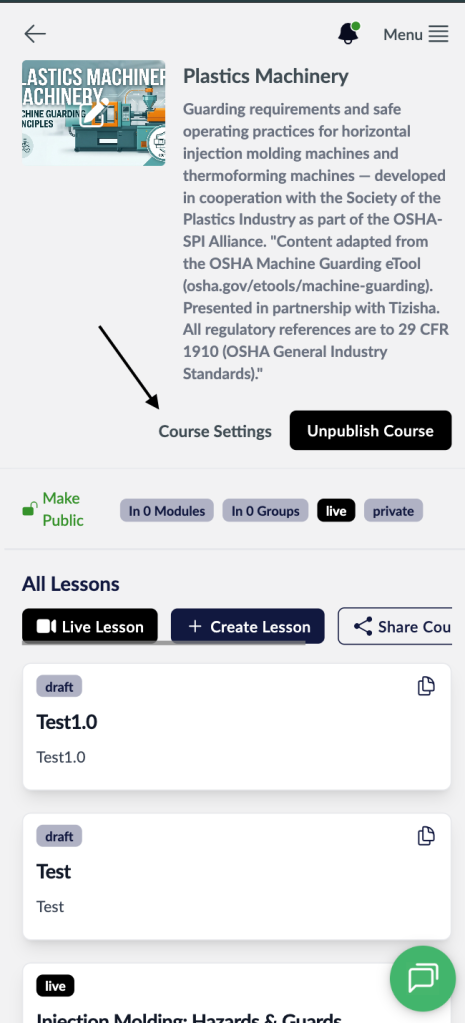
- Now navigate to the Course Settings.
Desktop View
Mobile View
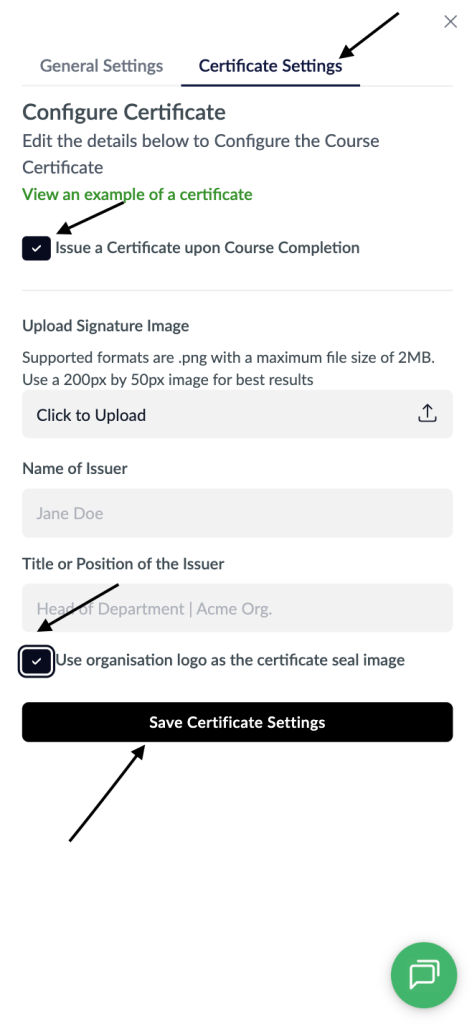
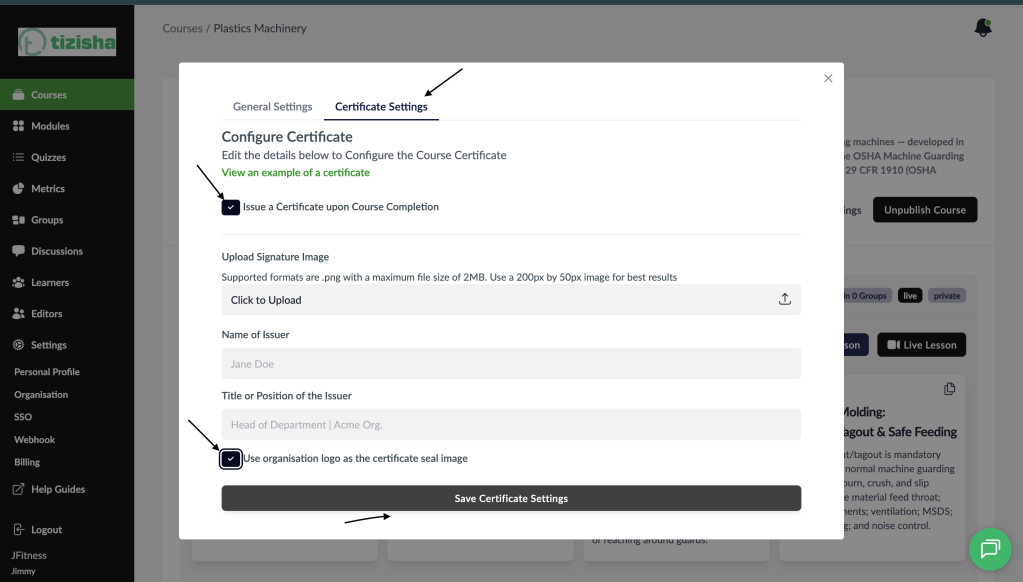
- By default you will be on the “General settings” section, navigate to the “Certificate settings” option.
- Here, you will see some radio buttons with some instructions to what that control does.
- Select “Issue a Certificate upon Course Completion” to reveal the Certificate Settings.
- After configuring your course for certificates, you will notice a radio button with text that reads “Use organisation logo as the certificate seal image”
- Click on that radio Button.
- Then click on the “Save certificates settings” button.
- What happens is your organization logo will be the seal image of the certificate instead of the Tizisha Logo.
Desktop View
Mobile View