
- Visit the Creator platform On your Phone/Tablet and on Desktop/Laptop and login.
- On the sidebar, navigate to the Organizations section under settings.
- By default you will notice you will be redirected to the “Profile” tab. Switch to “Appearance”.
Desktop View

Mobile View
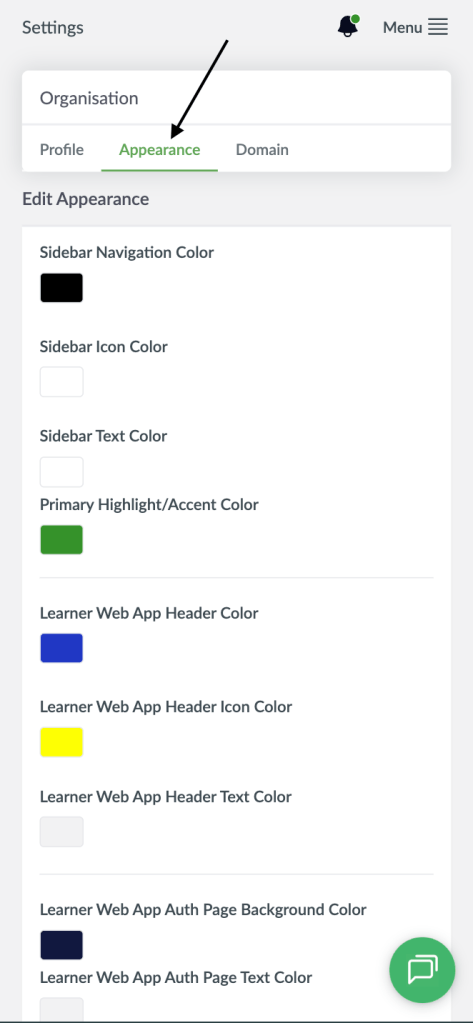
- You will see settings specified on where colors related to appearance of the platform can be specified.
- To make changes on the learner platform, just head over to the “Learner web app” section to make changes.
- Click on any color to reveal a color picker and select a color.
- You can drag your color picker cursor around to change the color.
Desktop View

Mobile View

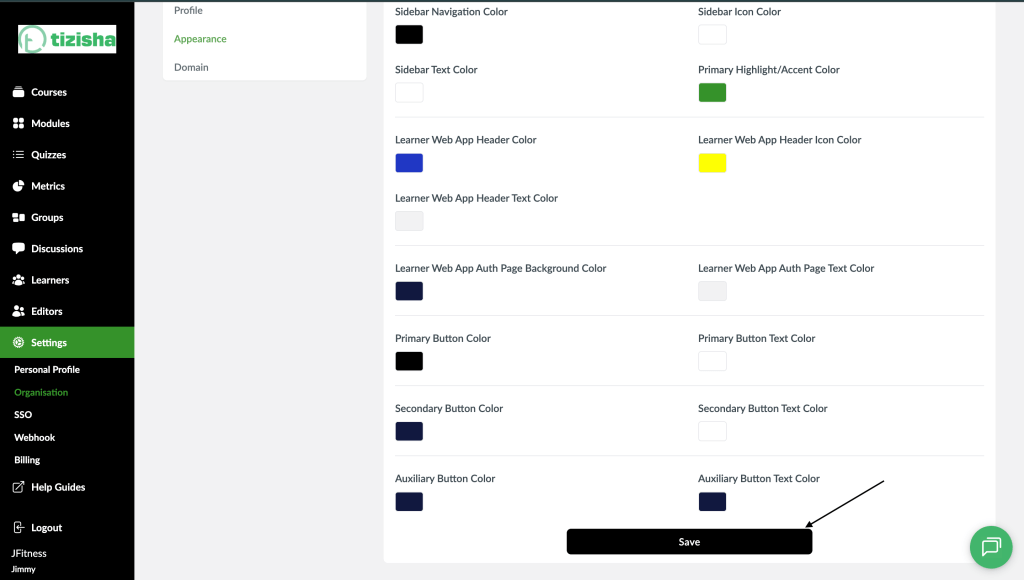
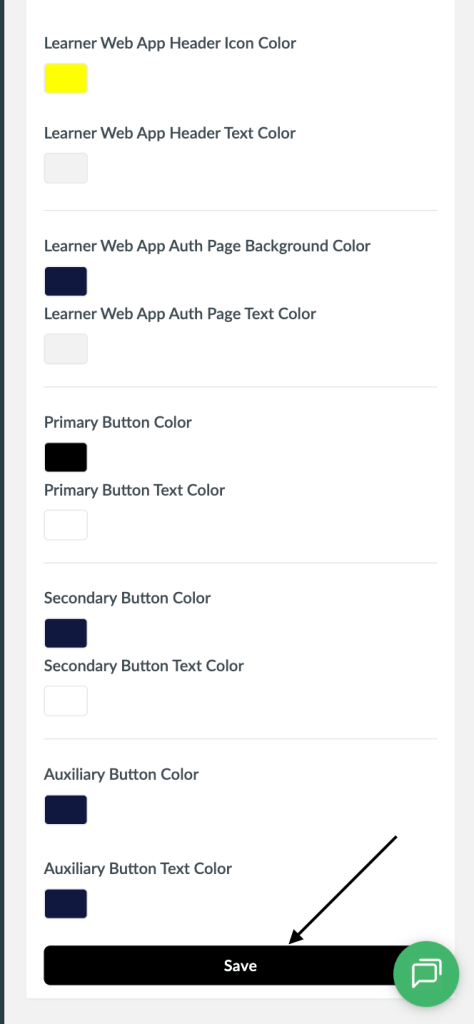
- After making the color changes on the learner App, scroll down and hit the “Save” button.
Desktop View
Mobile View
- Navigate across to the learner web app pages such as login and courses to see the changes take effect.
- Note that this changes will take effect on the learner app if you are using a custom Learner Domain.