- Visit the Creator platform On your Phone/Tablet and on Desktop/Laptop and Login.
- Navigate to the metrics section on the side bar.
Desktop View

Mobile View

- Click on the Course metrics dropdown and select the course you want to track learner course metrics for.
Desktop View

Mobile View

- After Selecting your course, scroll down to the learner Course metrics section.
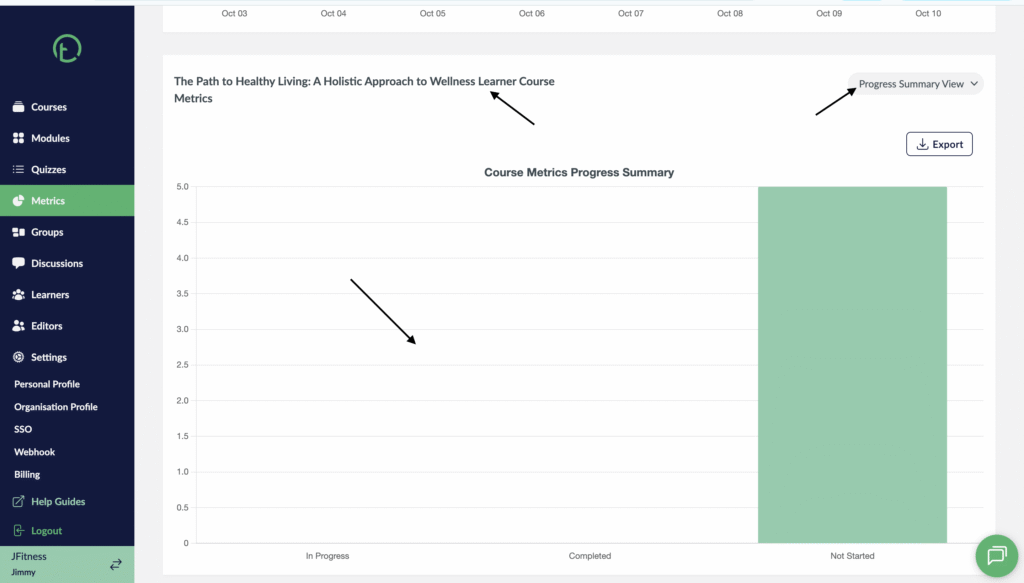
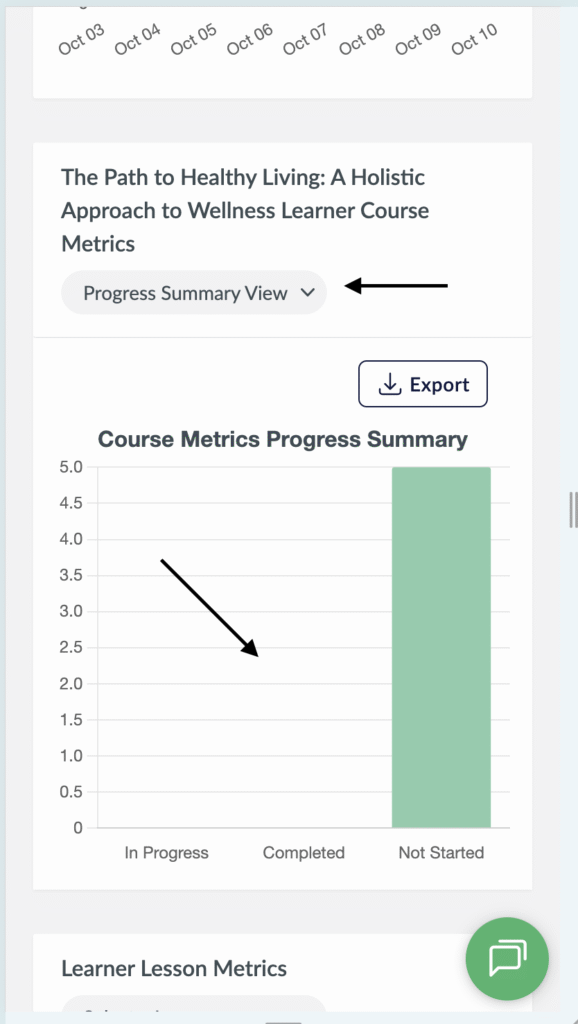
- On the right side of your screen you will see a dropdown where you can select the view you want. The progress summary View is the default view.
- This displays a bar graph where you are able to see the completed, in progress and not started metrics.
Desktop View
Mobile View
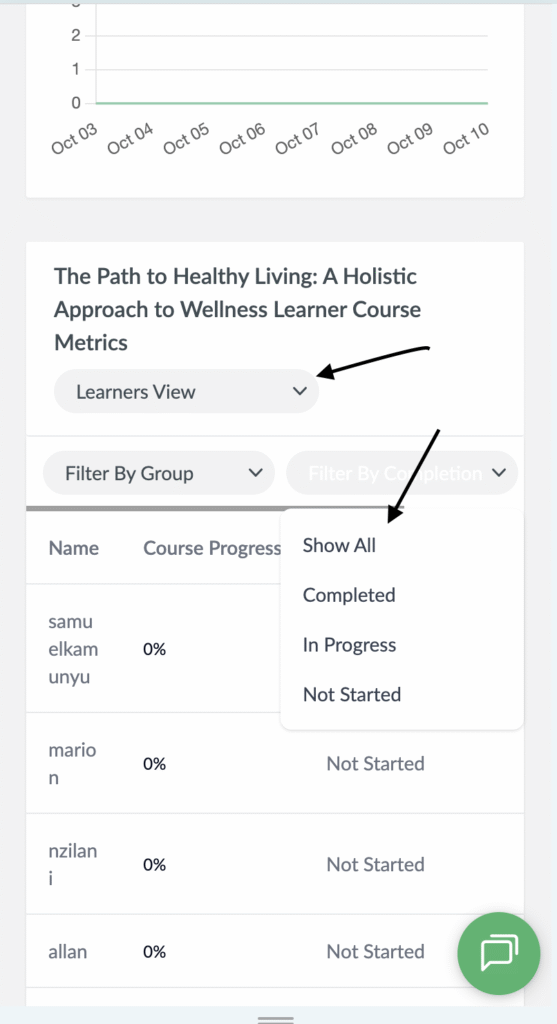
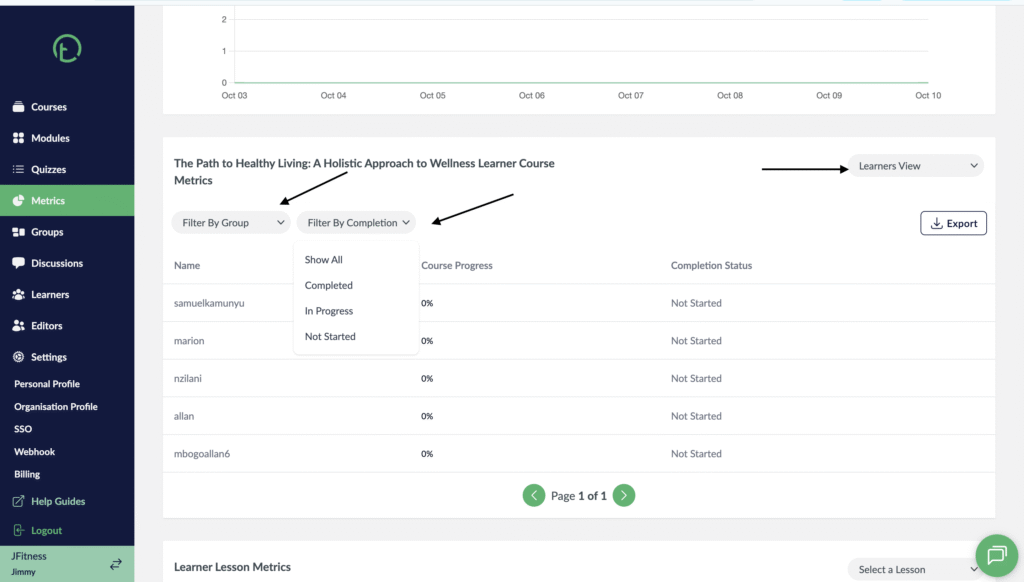
- To see the learner view, click on the dropdown on the right of your screen and select learner view.
- A list of the learner name, Course progress and completion status will be displayed.
- Just above the table, we have two additions dropdown options. One is to track learner course metrics based on groups and the other is to filter based on completion.
- The groups dropdown basically shows all the groups you’ve created and you can select the group name and the list of all group members will be displayed on the table with their metrics.
- The filter by completion, shows the three options which are: completed, in progress, not started and show all to display all the learners without filtering their completion. Click on any of the options and you will see metrics for the learners based on the completion status you selected.
Desktop View
Mobile View