
Visit the Creator platform On your Phone/Tablet and on Desktop/Laptop and login.
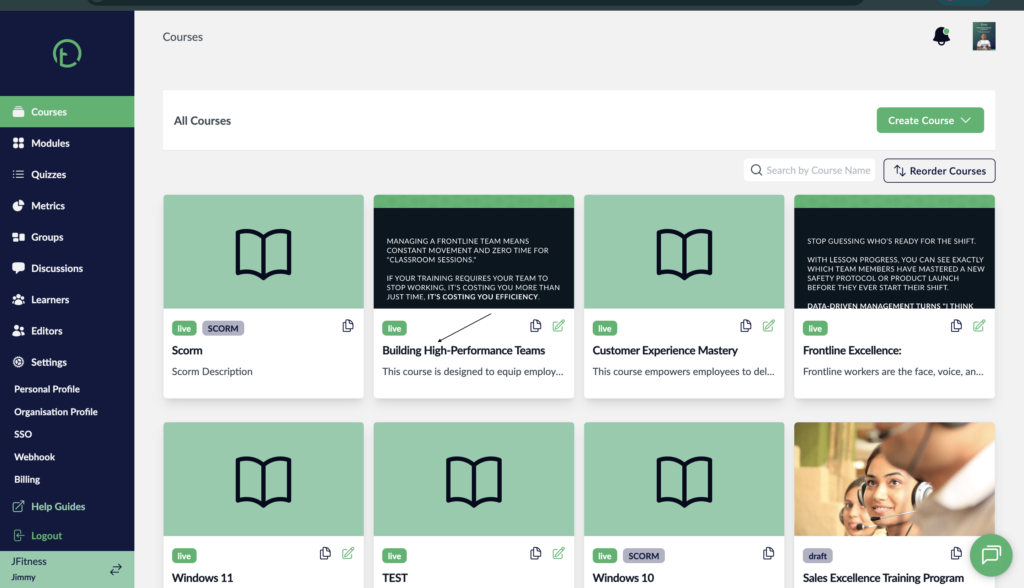
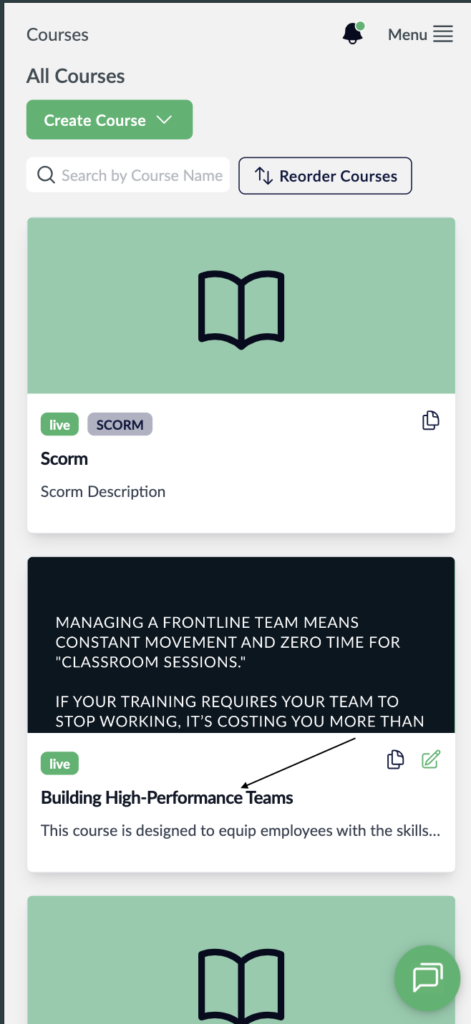
- On the courses page, select a Course.
Desktop View
Mobile view
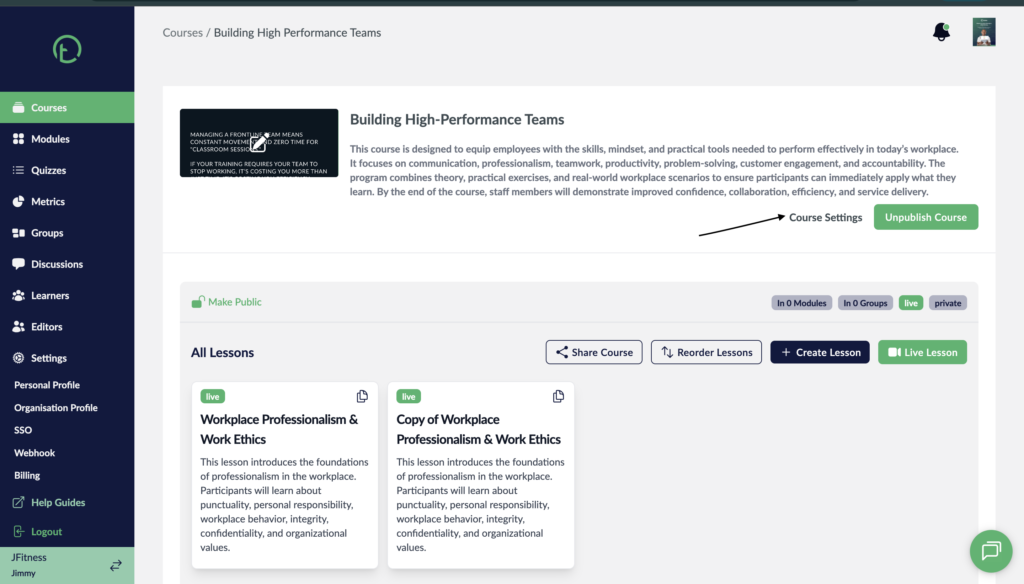
- Click on the Course settings link on the on the right side of your screen, just next to the Publish course button.
Desktop View
Mobile View

- You will see a pop up with some controls and checkboxes on it.
- Look for the one labelled “Set Course Due Date” and click on the checkbox next to it.
- The checkbox will turn Black signifying its been activated.
- You will now see more controls associated with this setting. On the dropdown it will be set to “By a certain Date” by default. leave it as is.
- Now proceed to the calendar control and select the date you wish to be your deadline for the course. (Note that you can only select a date that’s in future.
- Then hit save.
Desktop View.

Mobile View.

- If later on you wish to change the deadline date for completion, select “course settings” and repeat the process all over again.
- All updates will reflect on the learner app and they can see when a course is due on the course cards.
Desktop View

Learner View
