
- Visit the Publisher platform On your Phone/Tablet and on Desktop/Laptop and login.
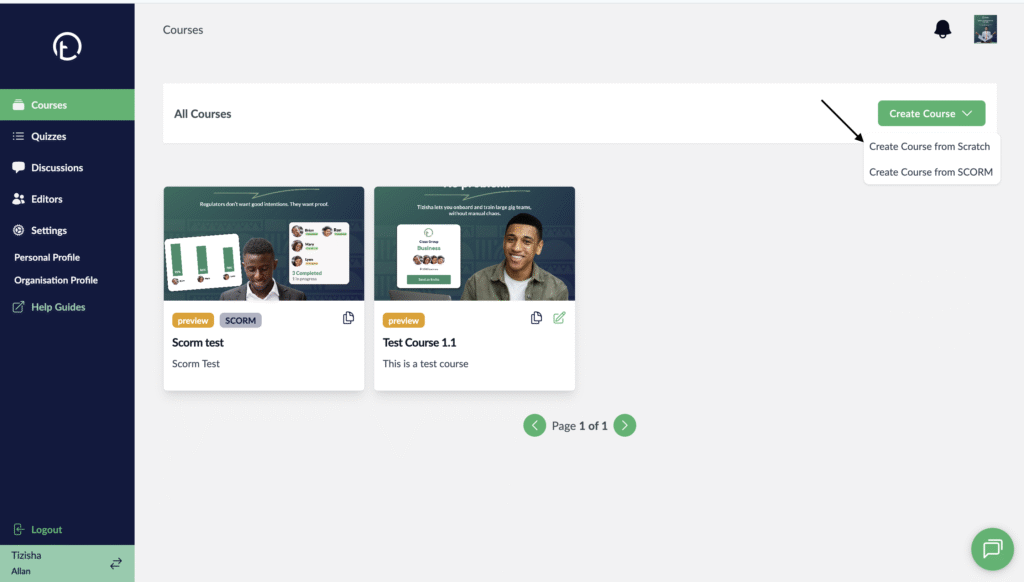
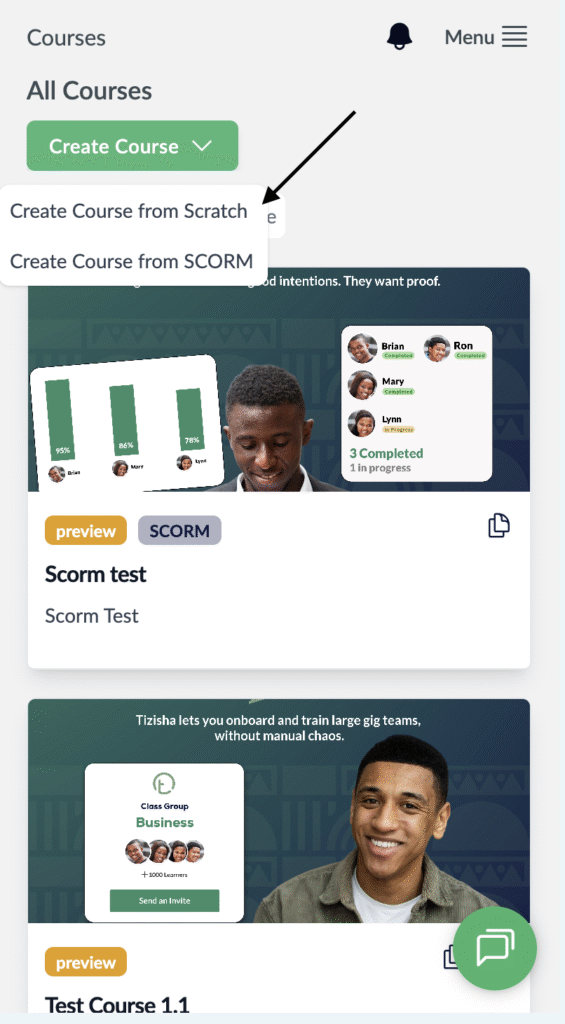
- Navigate to the course section on the sidebar. On the far right of your screen, navigate to the Create course dropdown and select create course from scratch.
Desktop View
Mobile View
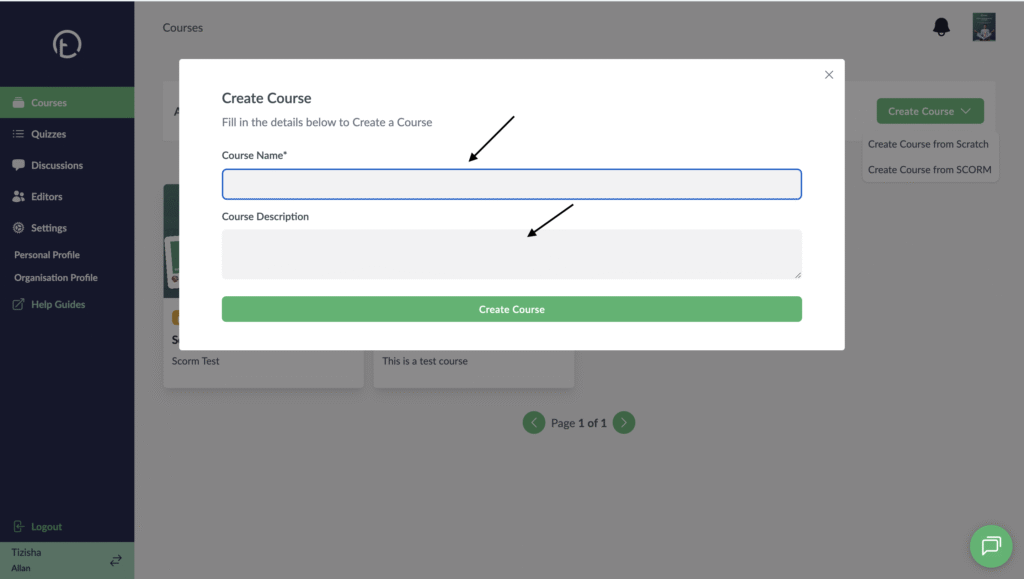
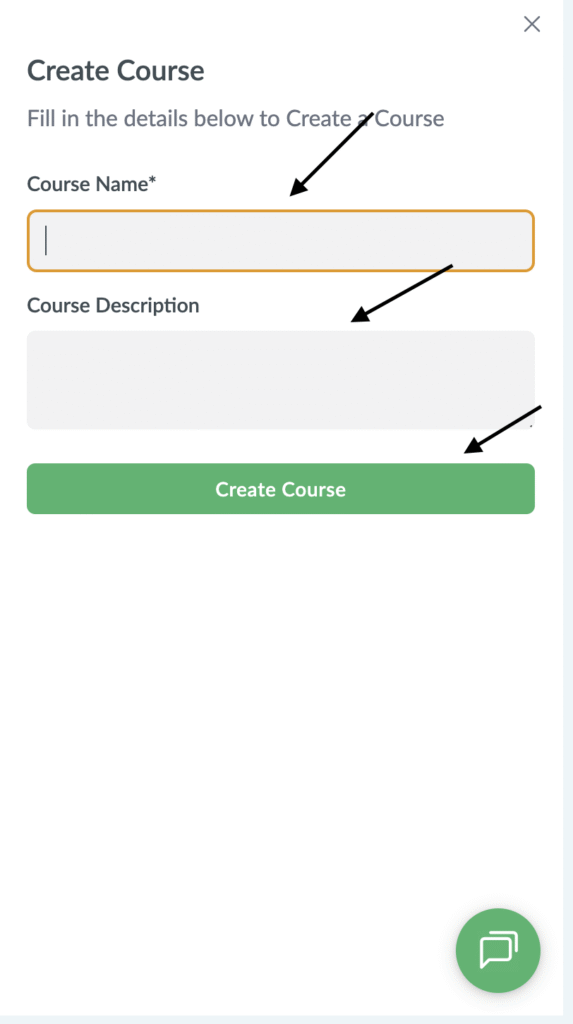
- You will get a pop up that triggers you to add your course name and course description.
- Add the details and hit the “Create Course” button.
Desktop View
Mobile View
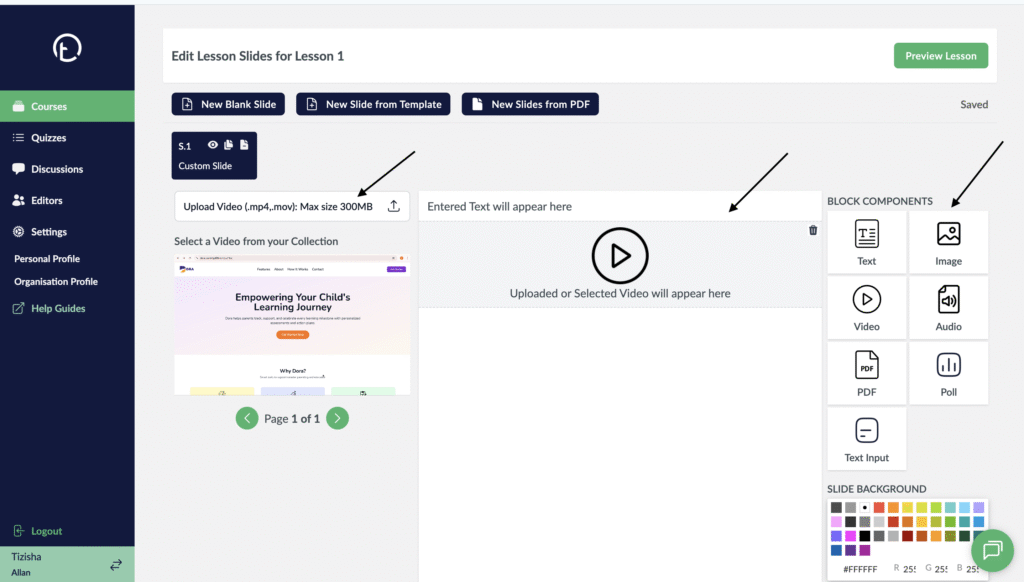
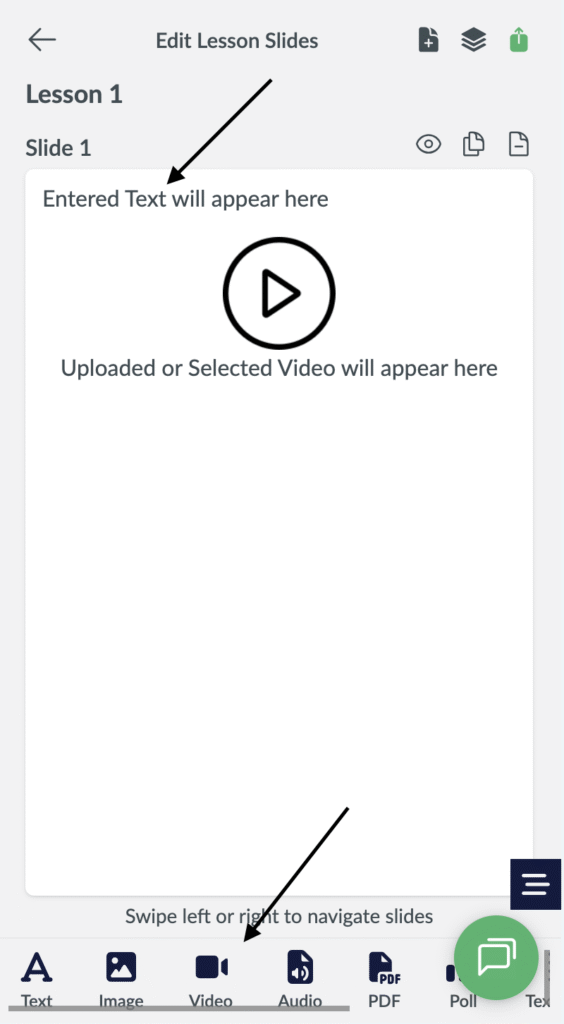
- You will now be redirected to your slide editor screen where you can now add your content with the block components we have on the platform.
- Just click on any block component of your choice drag it over to the middle section of your screen.
- To add a PDF just click on the “New Slides From PDF” button at the top of your screen and your pdf pages will be separated a slide per page orderly.
- To add a new slide, click on “New Blank Slide” button on the top left of your screen and you will be able to add a new slide.
Desktop View
Mobile View
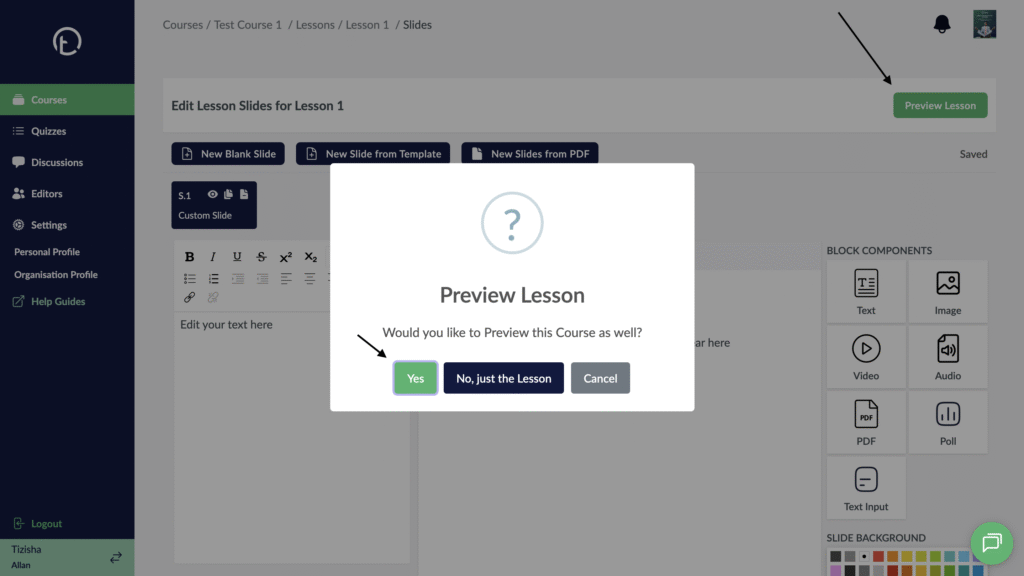
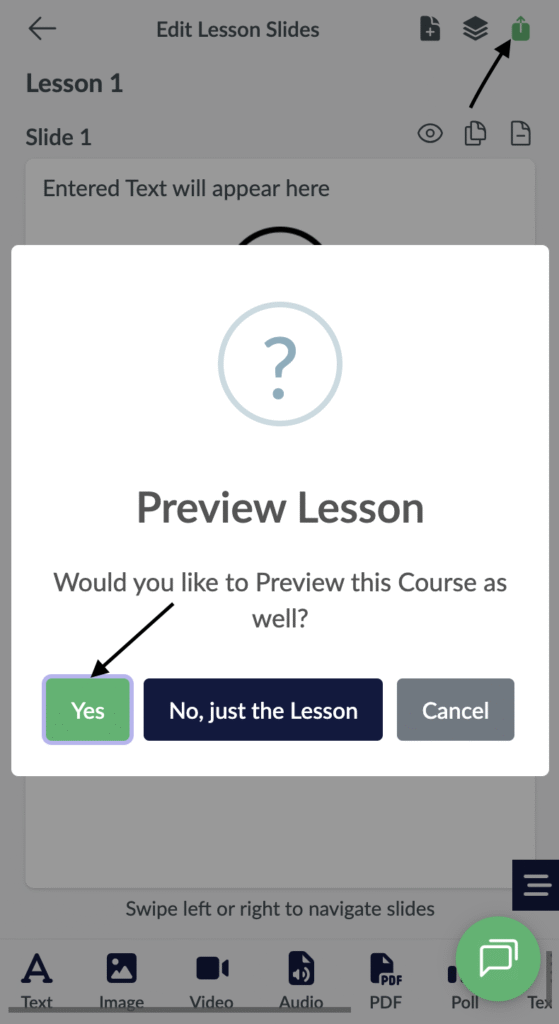
- Once you are done uploading your content, click on “Preview lesson” at the top right of your screen. This acts like a publish button which helps your content status to change from draft to live meaning users can now access it.
- You will see a pop up that asks you whether you want to preview the course as well. Click yes and both the lesson and course will now be live.
Desktop View
Mobile View
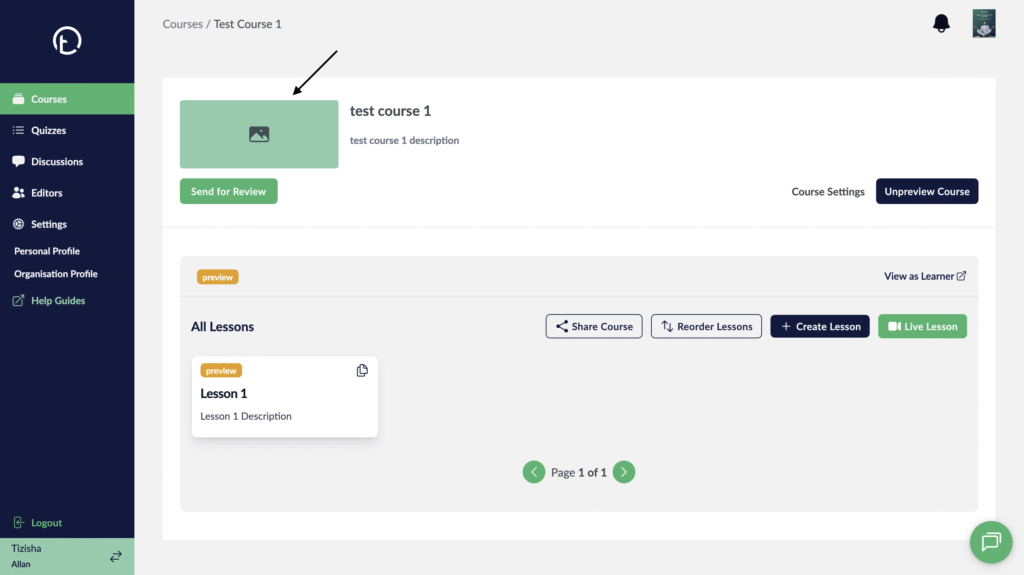
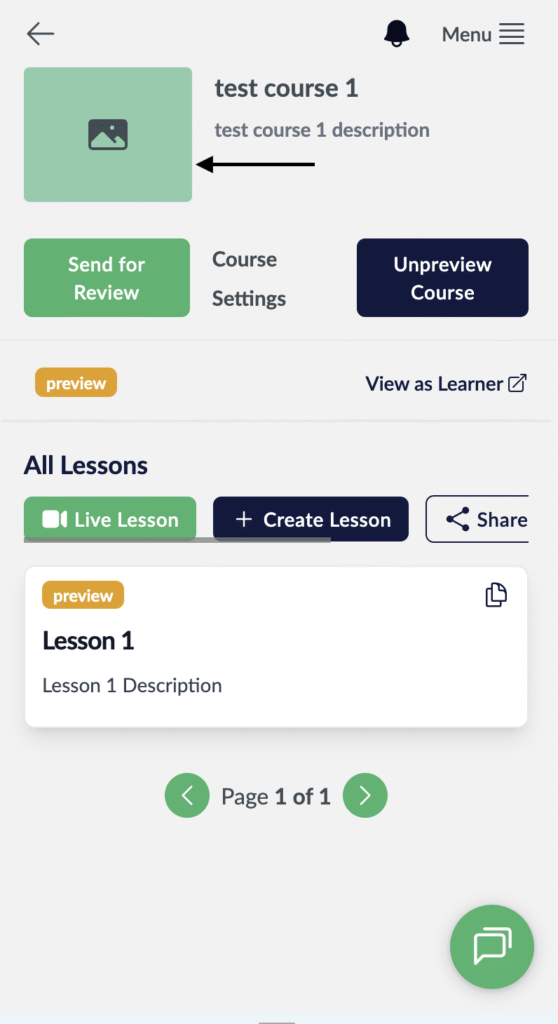
- You can now navigate back to see your Course and add a thumbnail.
- You can edit you lesson name and description from this section as well.
Desktop View
Mobile View
- You have now successfully created your course from scratch.