
- Visit the Publisher platform On your Phone/Tablet and on Desktop/Laptop and login.
- On the right side of your screen, select the create course dropdown and choose “Create Course From Scorm”
Desktop View

Mobile View

- You will get a pop up that requires you to add some course details like passmark, scorm version and uploading the scrom package.
- Make sure to download the Scrom package first then upload it on this section.
- The will be a status bar that shows you the progress of the upload of the Scorm package.
- Once everything is added hit the “Create Course From Scorm” button.
Desktop View

Mobile View

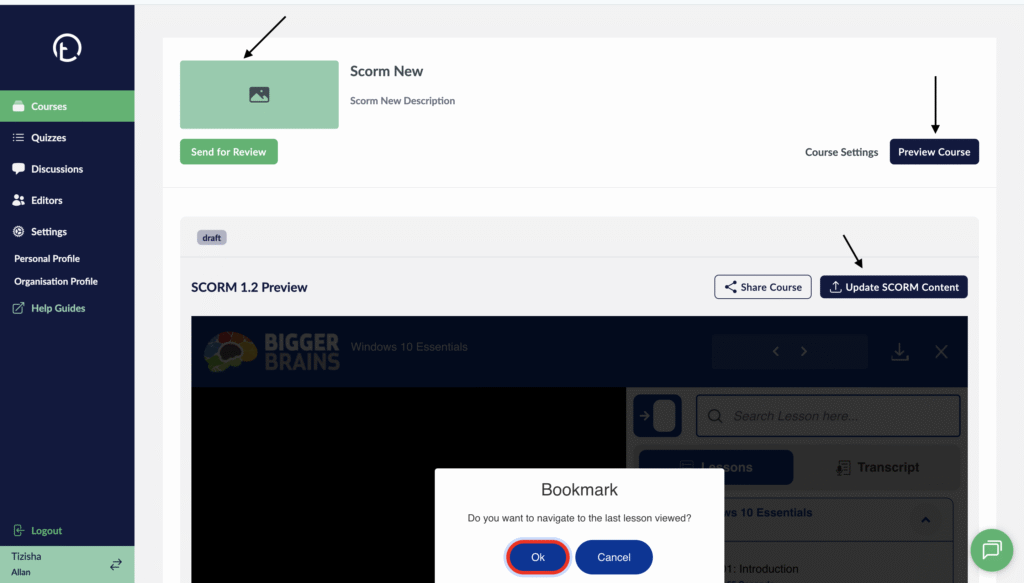
- Your Course will now be uploaded successfully.
- You can choose to add a thumbnail at this section of the course preview.
- Updating a Scrom package can also be done from this section. What this does it if you upload a new scorm package to an already existing it overwrites the initial course and the new one is now loaded.
- Always make sure to Preview Course if you want to make it live.
Desktop View
Mobile View
