- Visit the Creator platform On your Phone/Tablet and on Desktop/Laptop and Login.
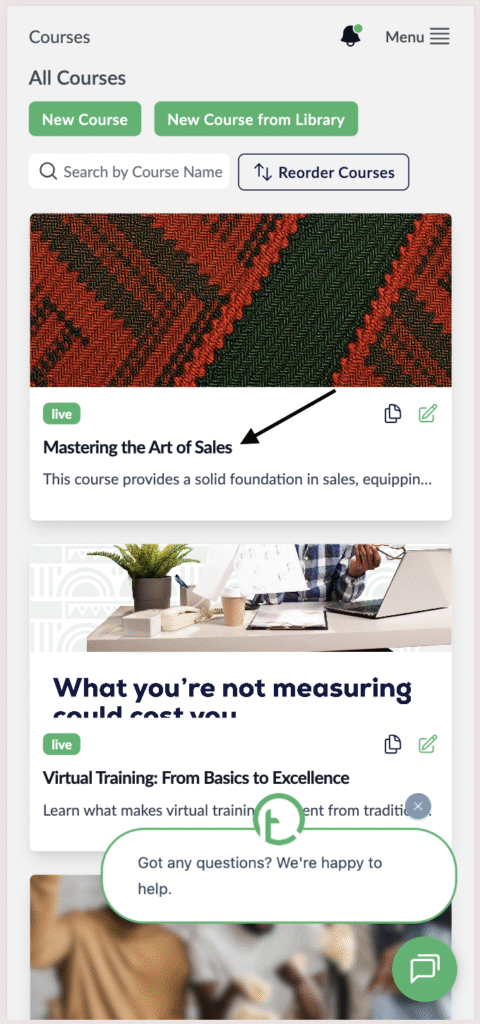
- Click on the Course you want to check text input responses for.
Desktop View

Mobile View
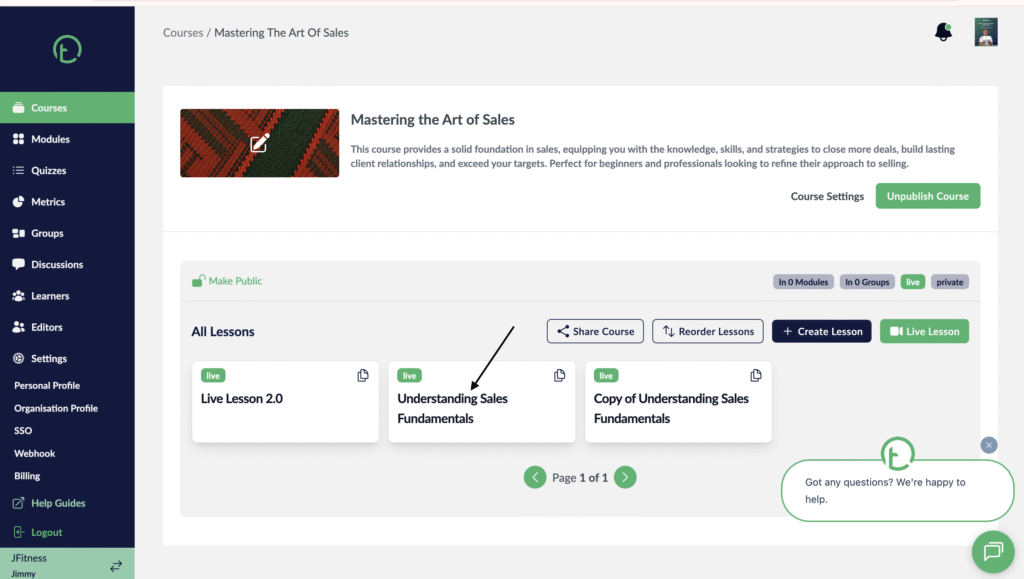
- This will open up all the available lessons in that course
- Click on the lesson you want to check text input responses for.
Desktop View
Mobile View
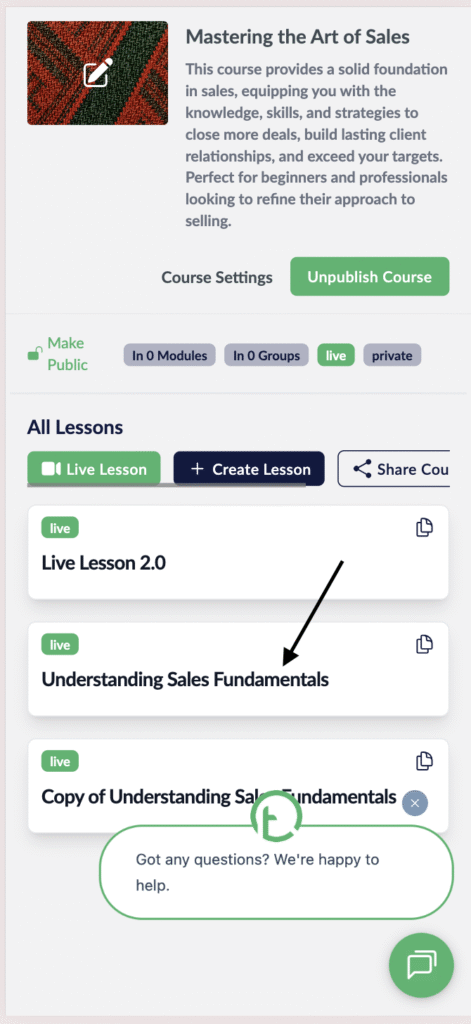
- This will open up the lesson details page.
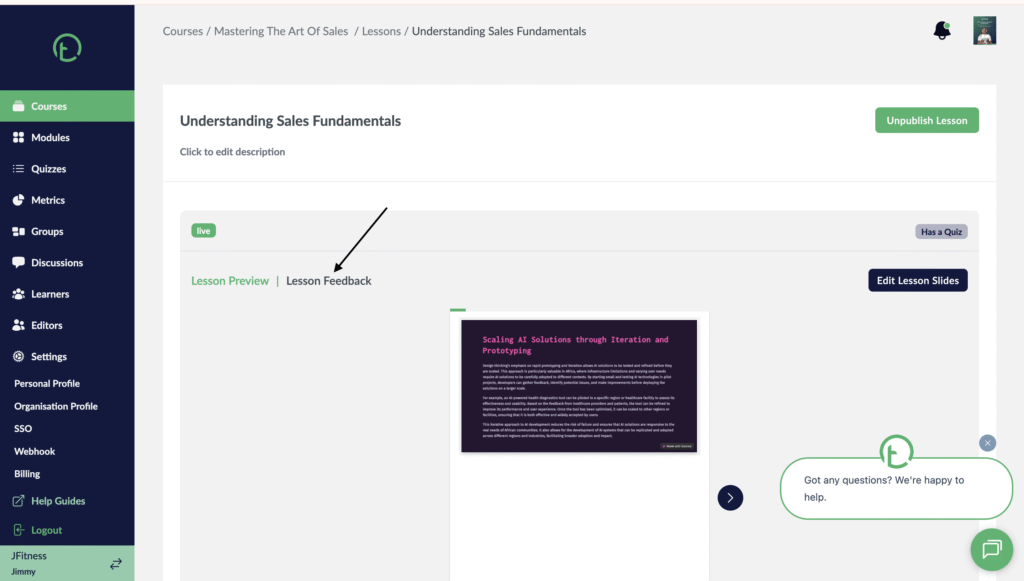
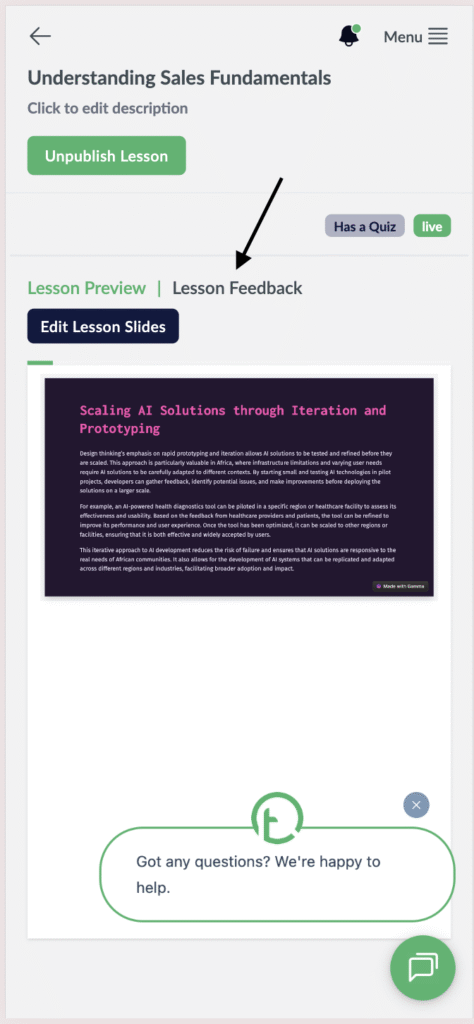
- Click on the lesson Feedback link.
Desktop View
Mobile View
- You will see the default view as “Feedback Options View”which shows feedback by supported feedback controls which is Polls and Text Inputs.
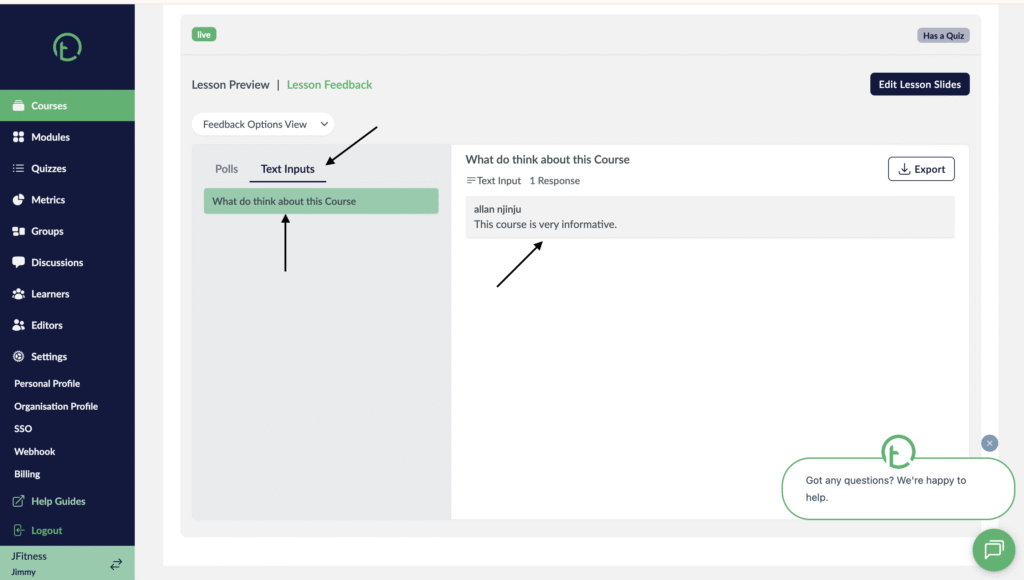
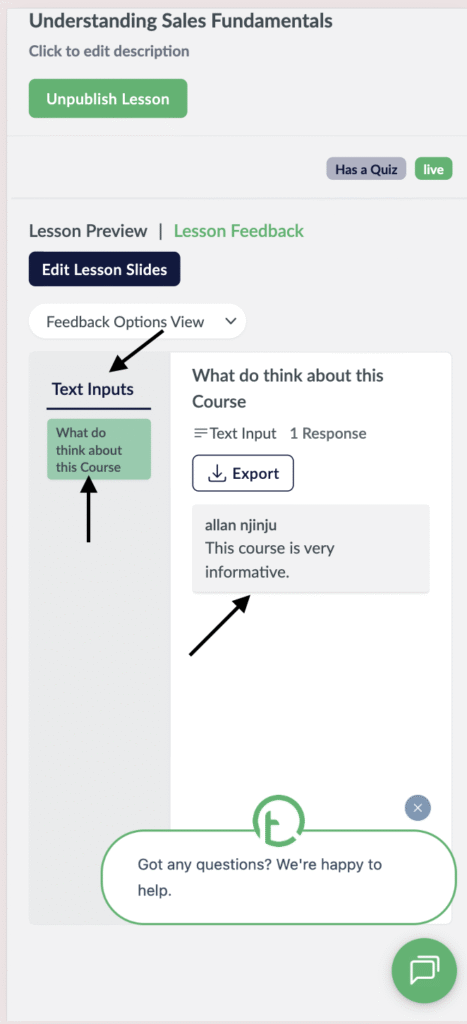
- Navigate to the text inputs tab.
- Under the text inputs tab, a list of all text input components you added to the lesson will appear here. Select the one you want to check responses for
- On right side of your screen, you will see the text input question, total number of responses, name of the learner and the response they gave.
Desktop View
Mobile View
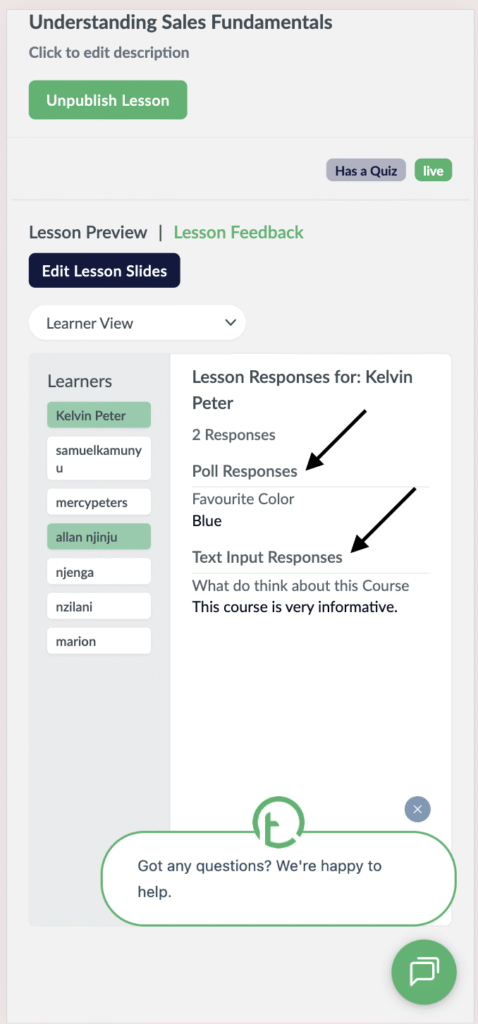
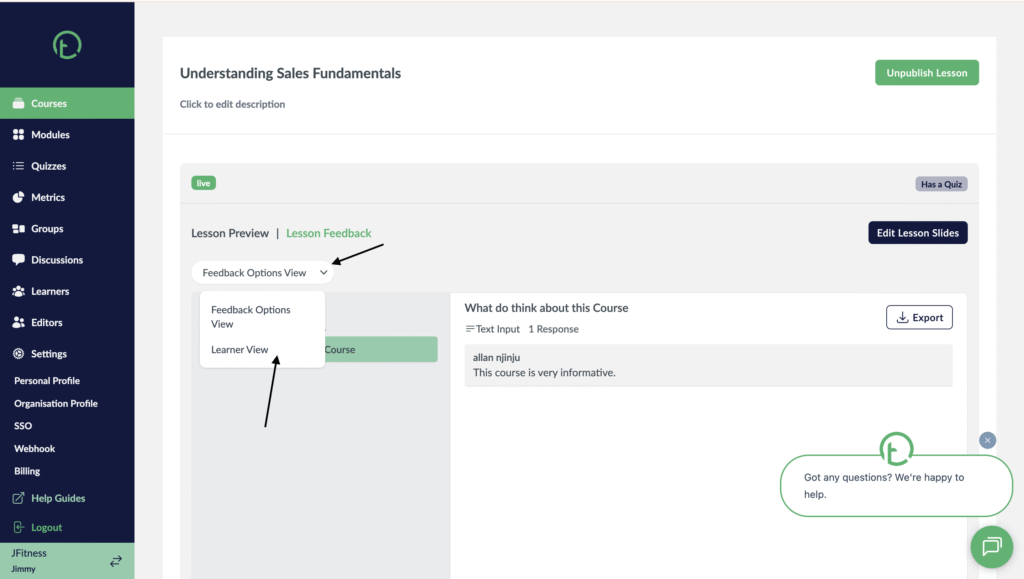
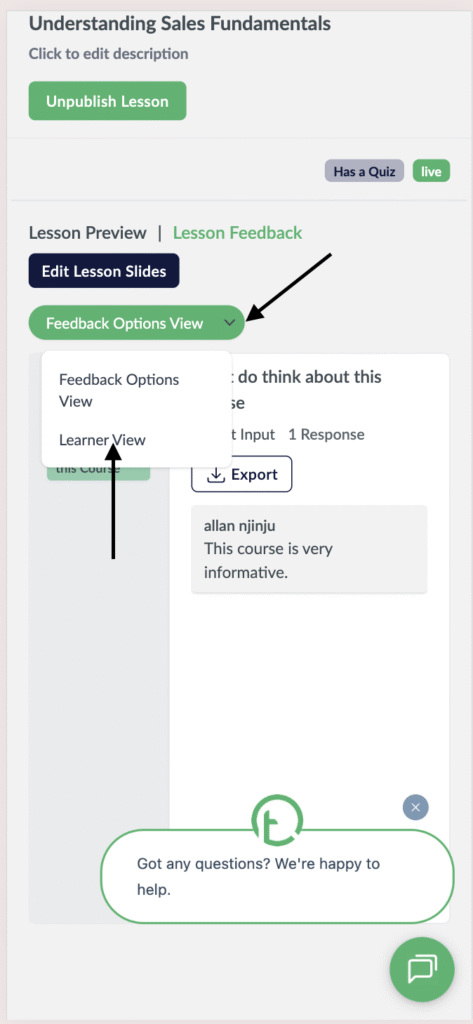
- If you wish to check the feedback responses for each learner for both text input and polls at once, navigate to the feedback options and click on the dropdown.
- You will see the “learner View” option.
- Click on it.
Desktop View
Mobile View
- A list of all the learners who have access to the course will be displayed.
- Click on the learner you want to track responses for.
- On the right side of your screen, you will see their responses for both poll and text input.
Desktop View

Mobile View