- Visit the Creator platform On your Phone/Tablet and on Desktop/Laptop and Login.
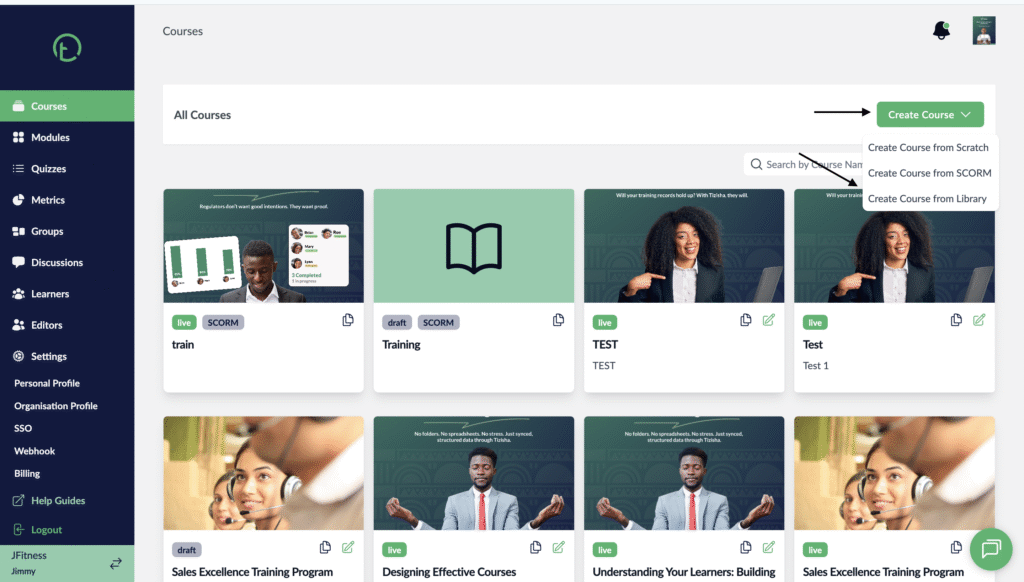
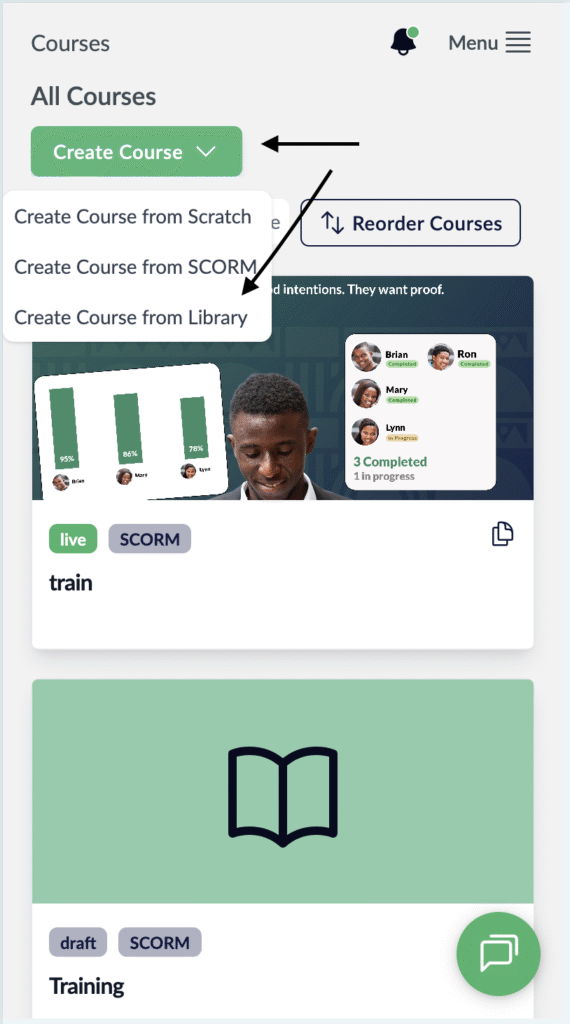
- On courses section, you will see a “Create a Course” dropdown button on your far right.
- Click on it and select the “Create Course from Library” option
Desktop View
Mobile View
- You will see three courses from the Library to choose from.
- Click on the “Import Course” on your preferred Course.
Desktop View

Mobile View

- The course you select will now be added under “All Courses”
- If you wish to edit and publish it, just click on the course and you can proceed editing the lessons.
Desktop View

Mobile View

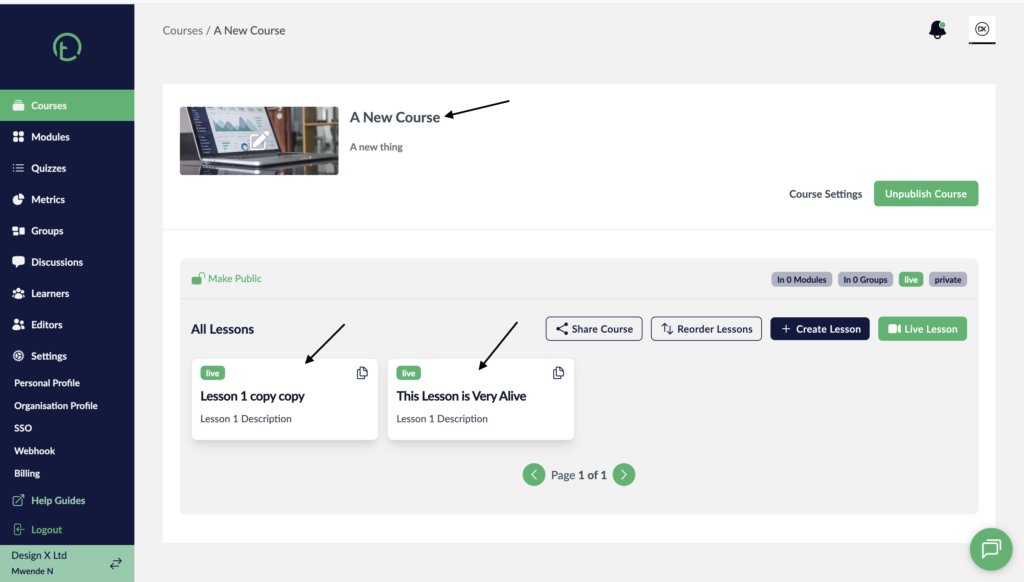
- You will now be redirected to the the course details page where you will see the available lessons that come with the template.
- Then you can proceed to edit the lessons and have you own custom lessons.
- All courses imported from the library will be in live state meaning they will already be published.
Desktop View
Mobile View

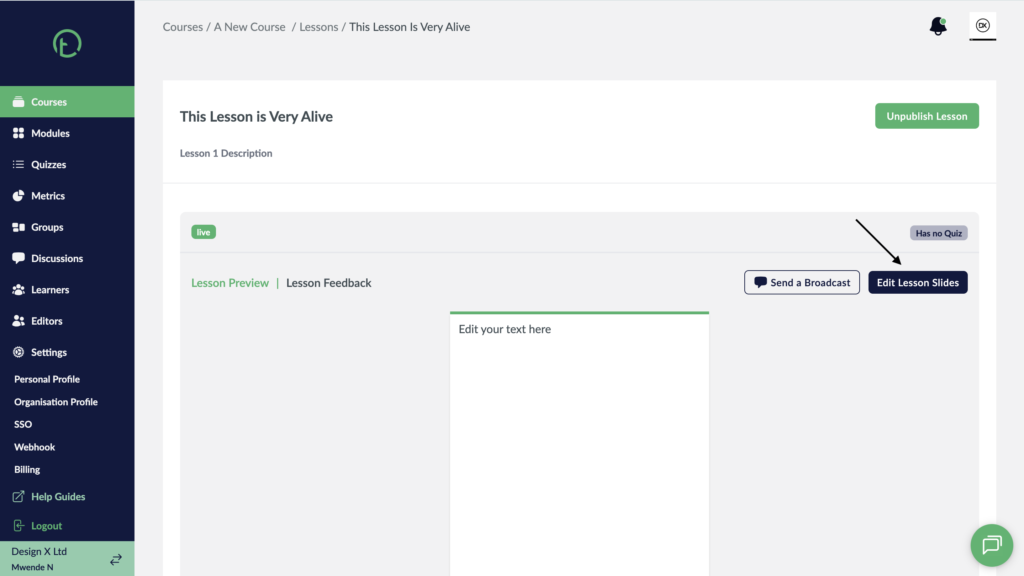
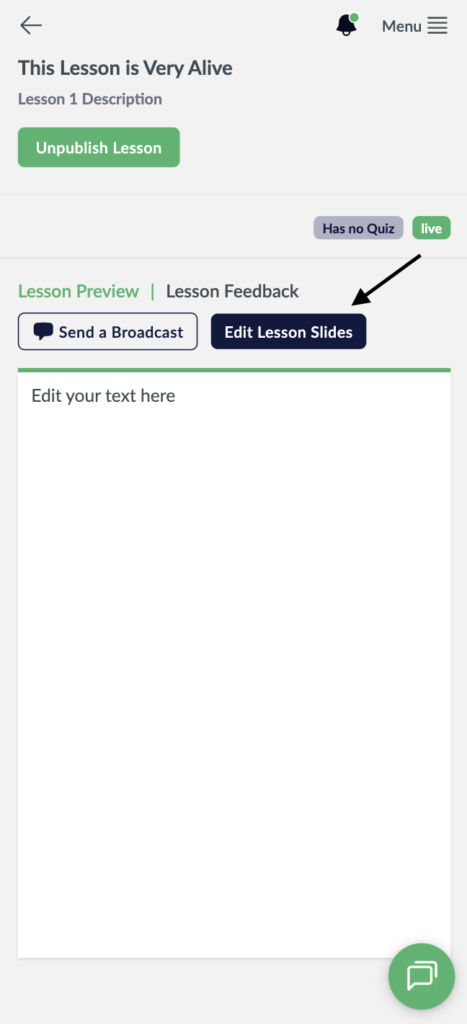
- When you click on any of those lesson, you will be redirected to the lesson preview page where you will see all the content for that Lesson.
- If you wish to edit the lesson with your own material, just click on “edit lesson slides”
Desktop View
Mobile View
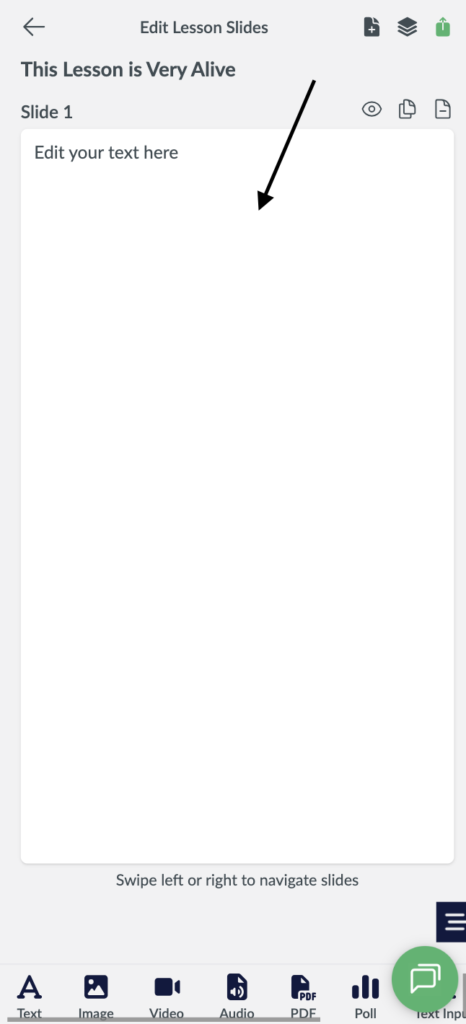
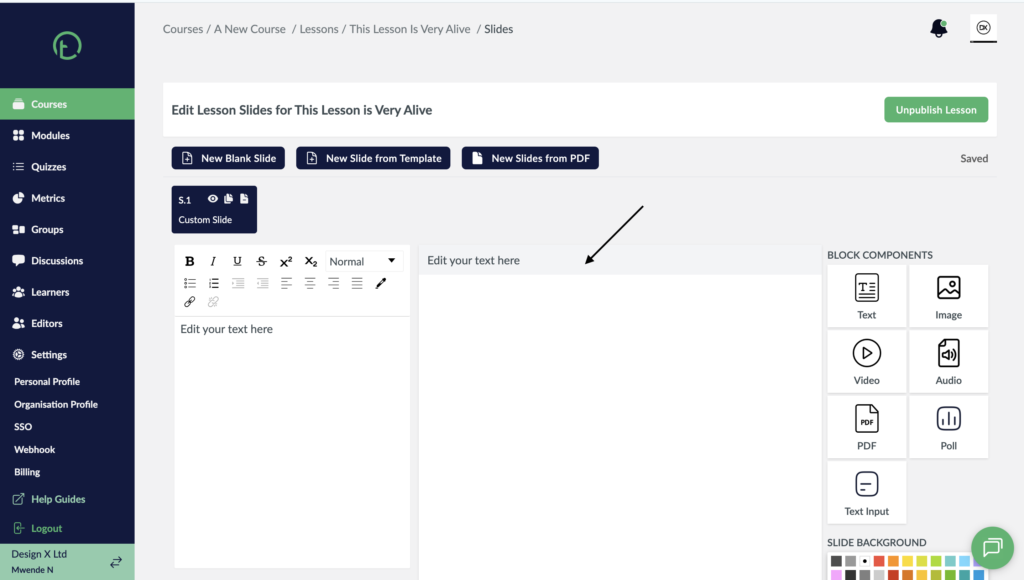
- This will now redirect you to the lesson slider editor section where you can delete the existing materials, add your own lesson slides and publish.
Desktop View
Mobile View