
- Visit the Creator platform On your Phone/Tablet and on Desktop/Laptop and Login.
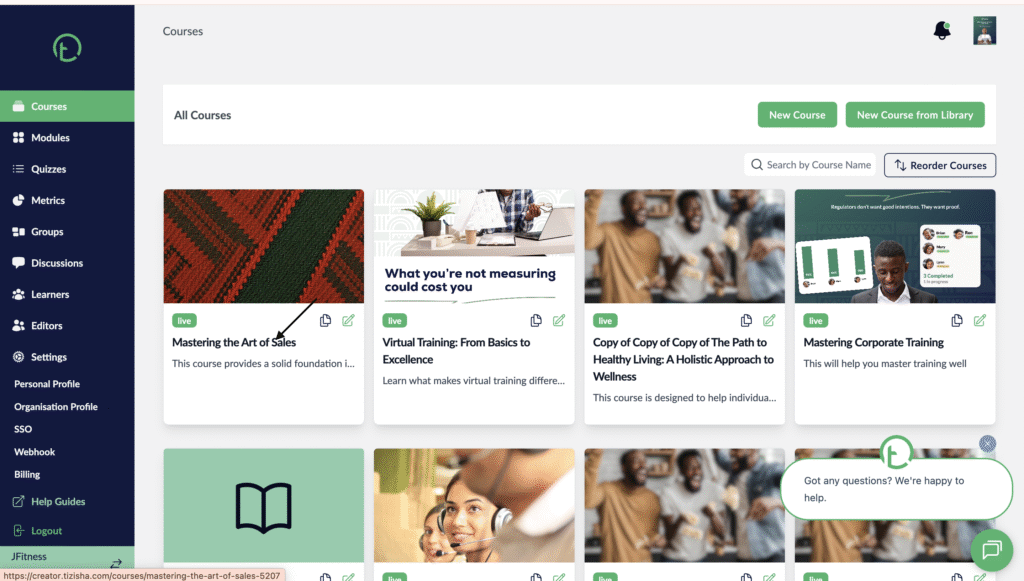
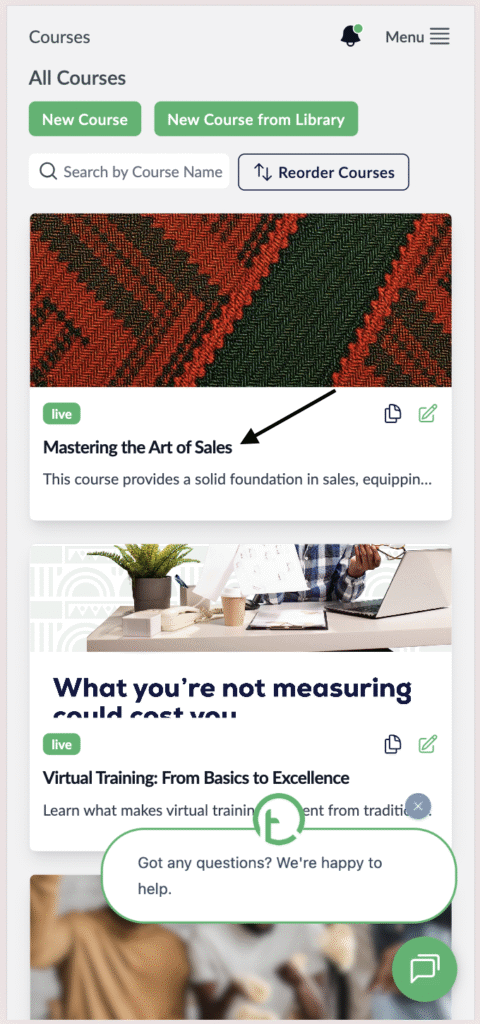
- Click on the Course you want to export responses from.
Desktop View
Mobile View
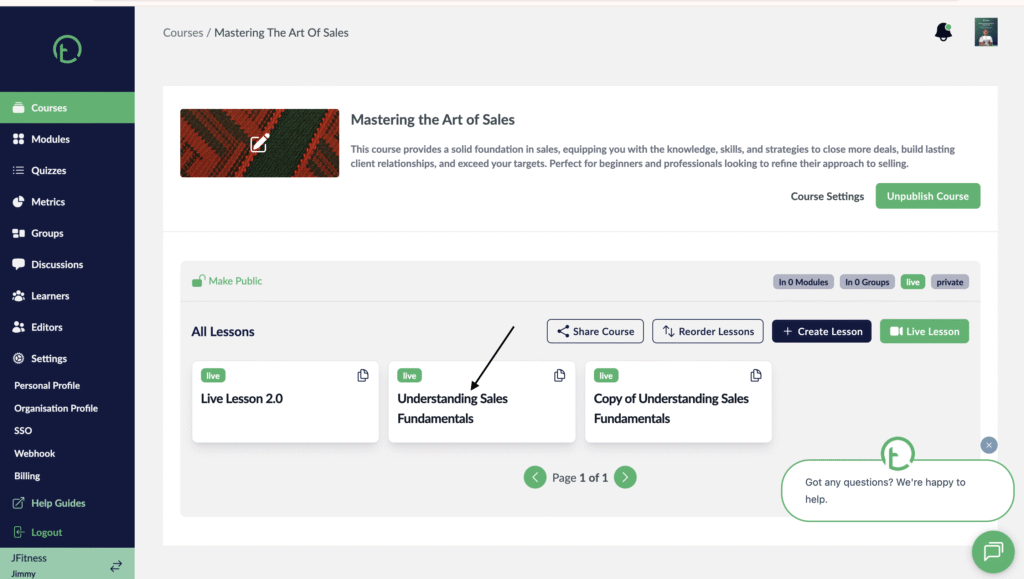
- Now proceed to click on the lesson you want to export the responses for.
Desktop View
Mobile View

- This will open Up the lesson details page.
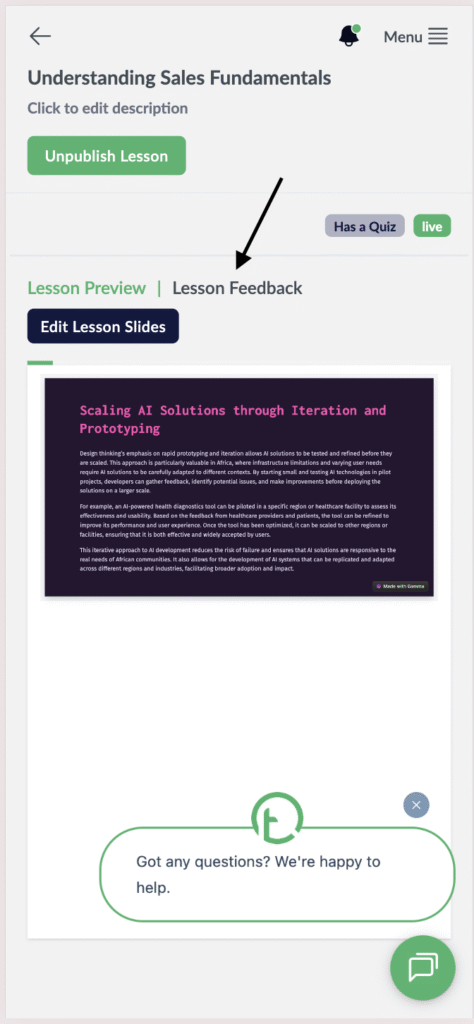
- Click on the lesson feedback link.
Desktop View

Mobile View
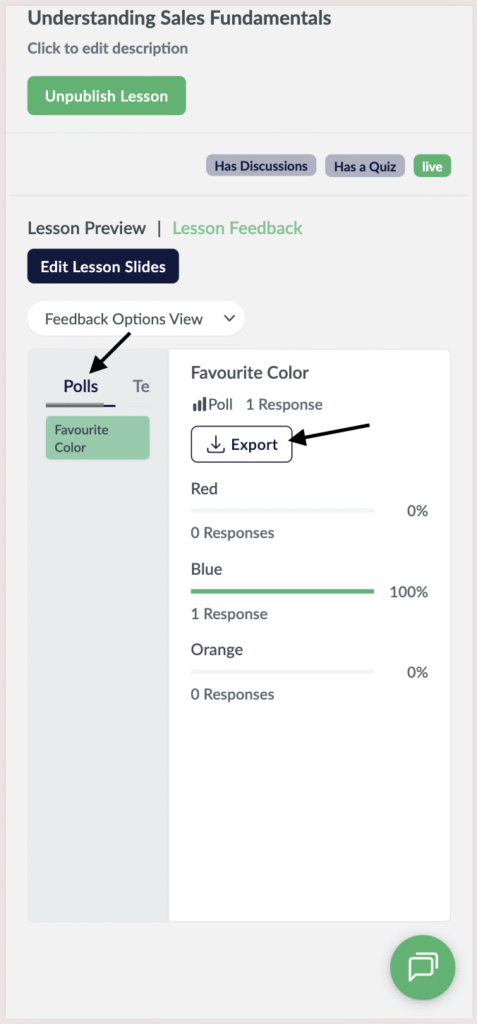
- Under the feedback option view, you will see the two feedback controls: Polls and Text Input.
- Click on the polls tab.
- On the Right side of your screen, you will see an export button, click on it to download the sheet document with the Polls data.
Desktop View

Mobile View
- You will now get a sheet document saved to your device.
- To export the “text input” option, just click on it and you’ll see the export button on the right side of your screen.
- Click on it to download the sheet document.
Desktop View

Mobile View
