- Visit the Learner Web App On your Phone/Tablet and on Desktop/Laptop and Login.
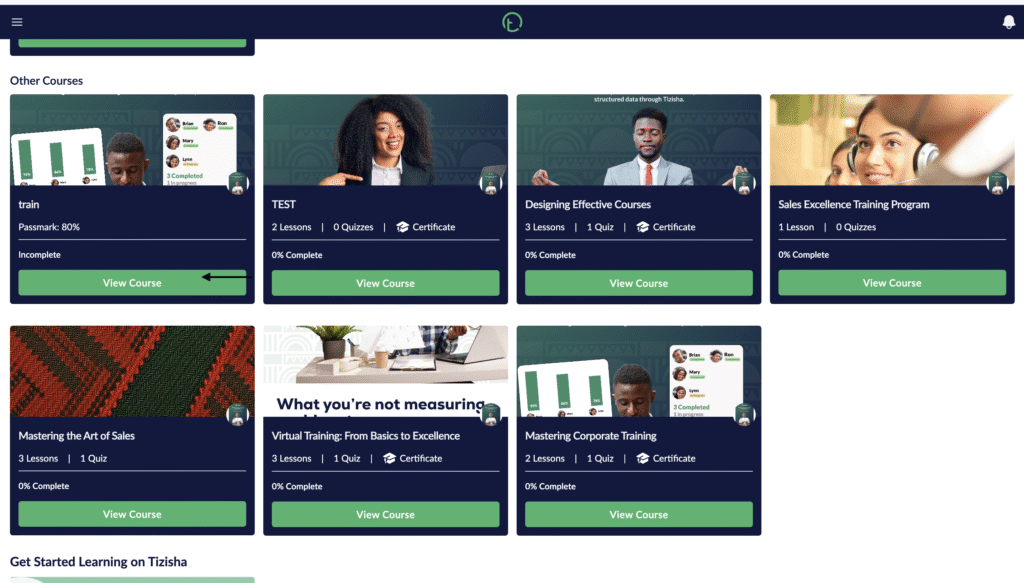
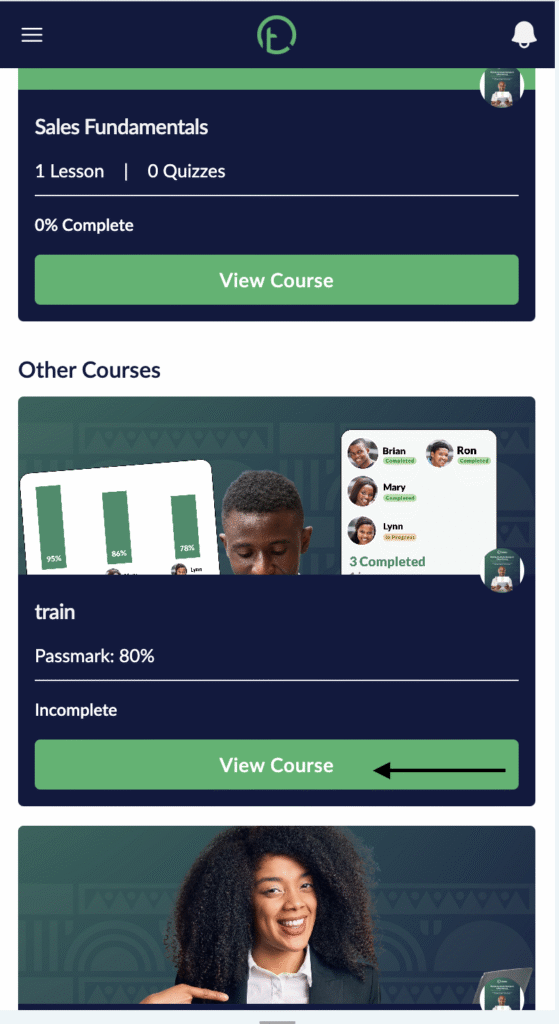
- Navigate to a Scorm Course and click View Course.
- You’ll notice the Scorm course cards are slightly different from the rest since you don’t see the the number of lessons or quizzes displayed.
Desktop View
Mobile View
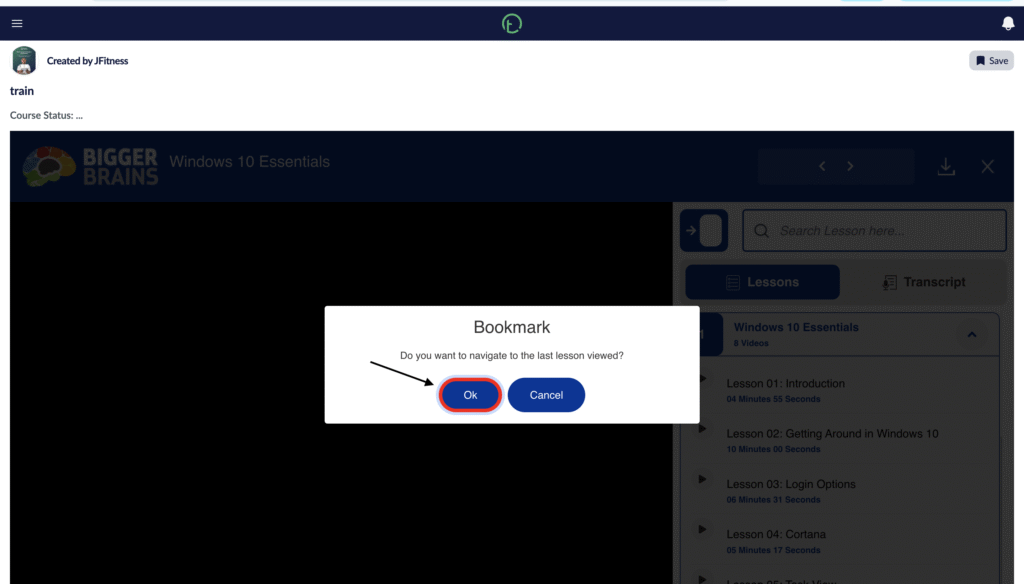
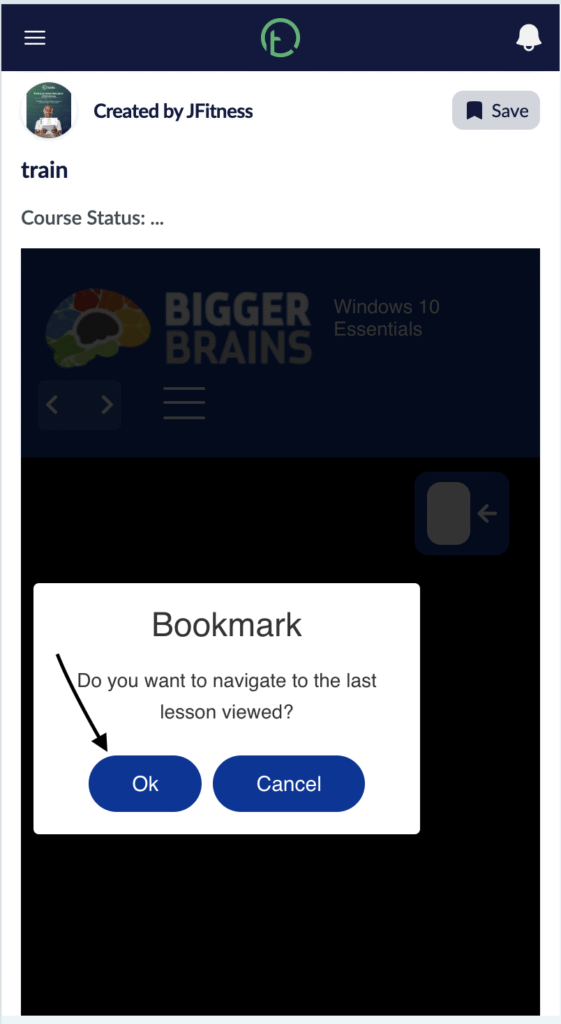
- If you had already started the Course, you’ll see a pop up that asks whether you want to continue from where you left.
Desktop View
Mobile View
- You can now proceed to finish the course. The structure of the Course flow will vary depending on how that Scorm package was created.
- Navigation to next lessons is easy and straight forward.
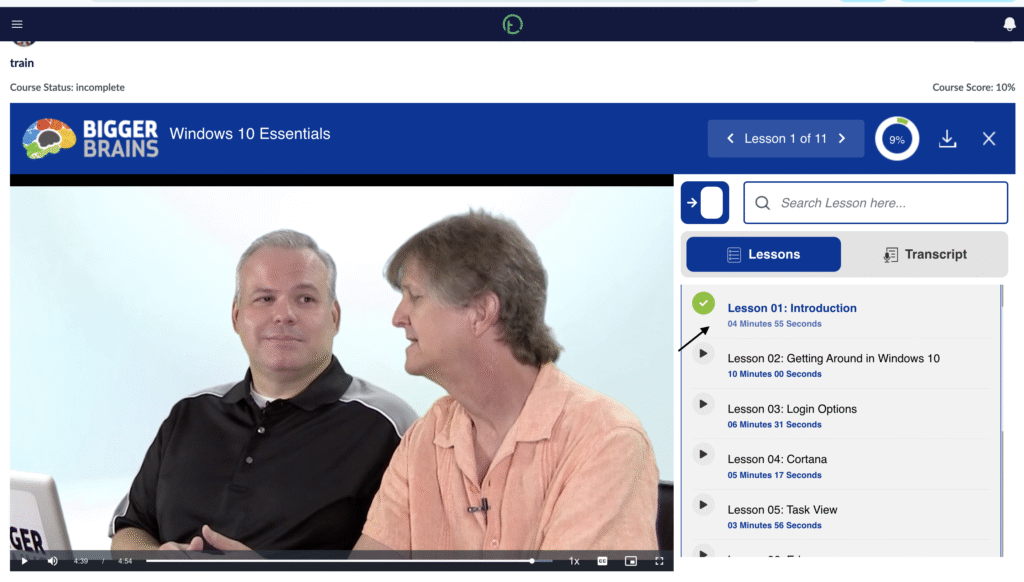
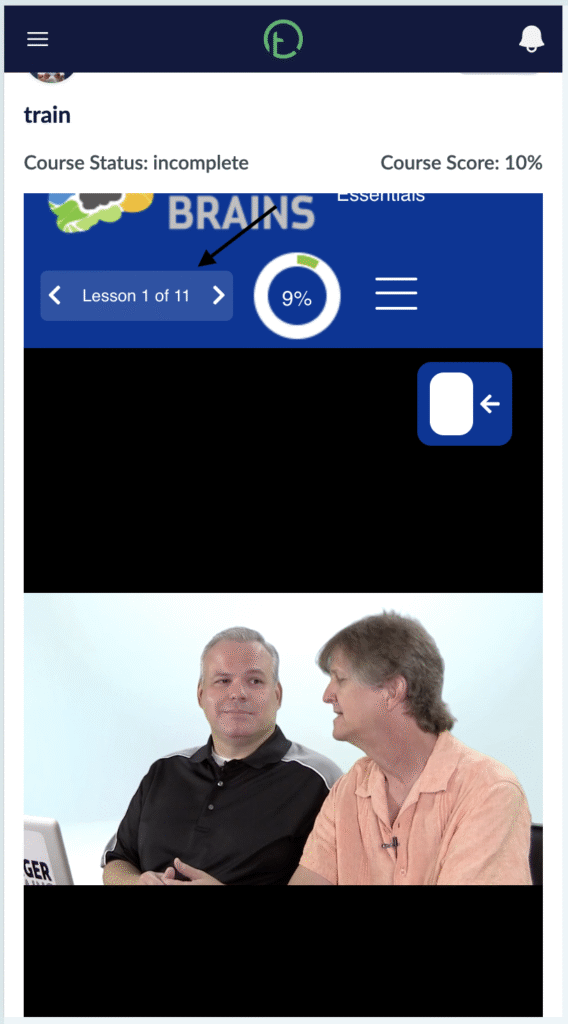
- For this Course you can see the lessons are well listed and when a lesson is complete, you are able to see that at the top left of your screen.
- Course Score appears at the top right of your screen as well and changes as you proceed with the Course
Desktop View
Mobile View
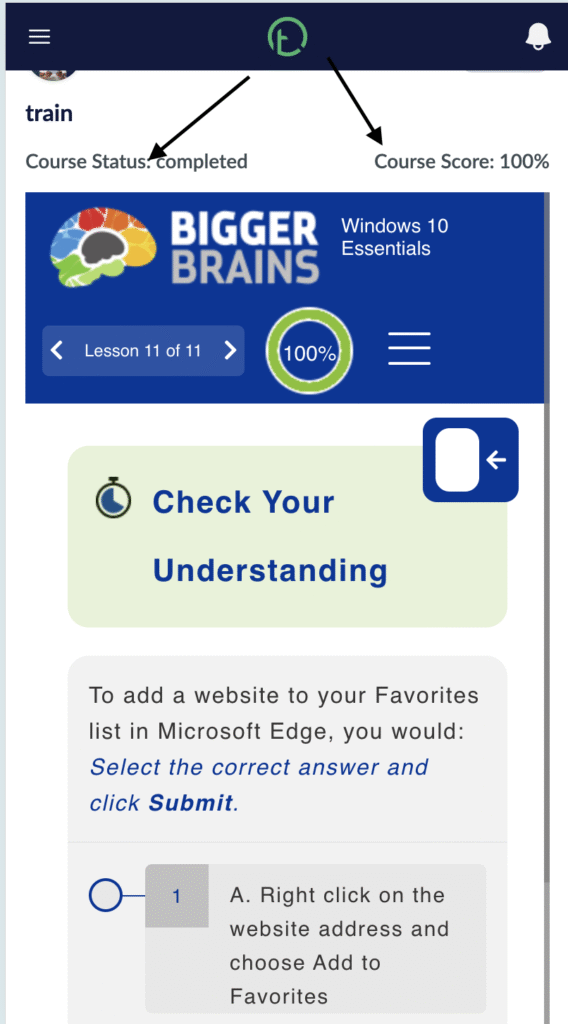
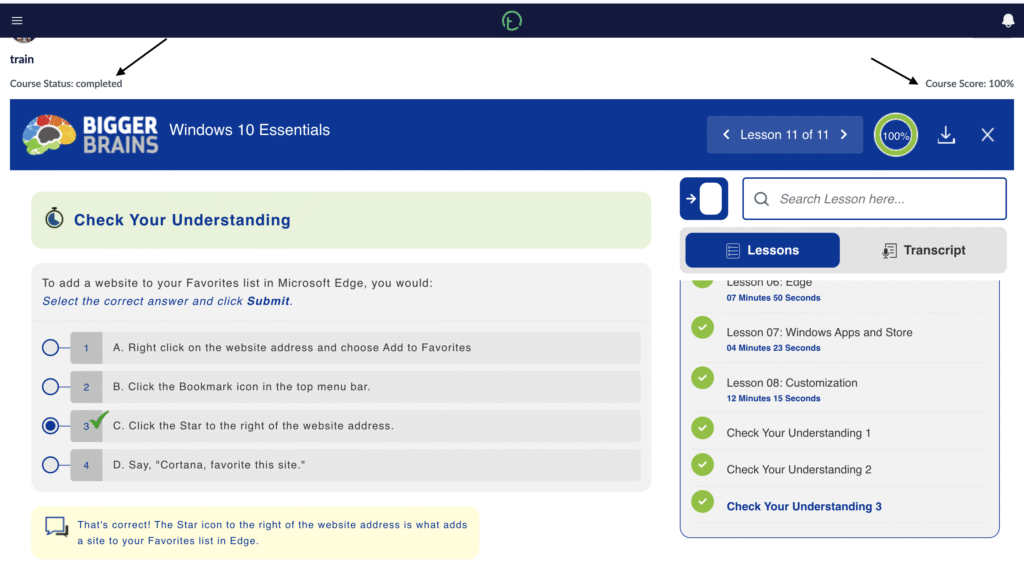
- After you are done with the lessons and Quizzes (if any), you will see the Course Score status change as well as Course Status.
Desktop View
Mobile View