
- Visit the Creator platform On your Phone/Tablet and on Desktop/Laptop and login.
- On the sidebar, navigate to the courses section.
- On the far right of your screen, you will see a button with a dropdown “Create Course”.
- After selecting the dropdown, select “Import from Tizisha Library”.
Desktop View

Mobile View

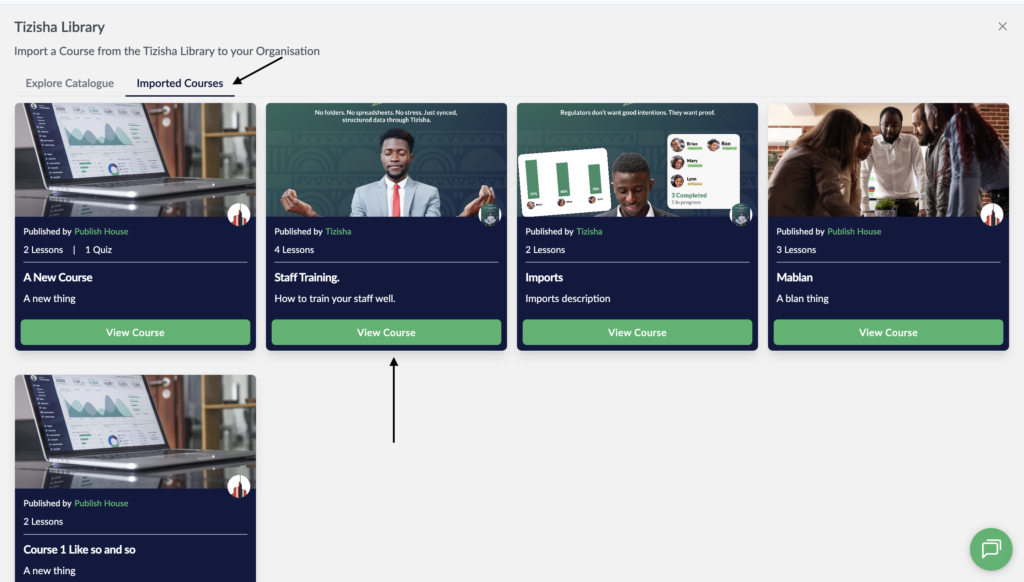
- You will see two tabs: “Explore Catalogue” and “Imported Courses”.
- Choose the “Imported Courses”.
- A list of all the courses you’ve imported will be displayed.
- If there’s an update pushed by the Publisher, you will see an orange button asking you to update.
- Click update and all the changes will reflect on your lessons.
- To view your changes, click on view course.
Desktop View
Mobile View
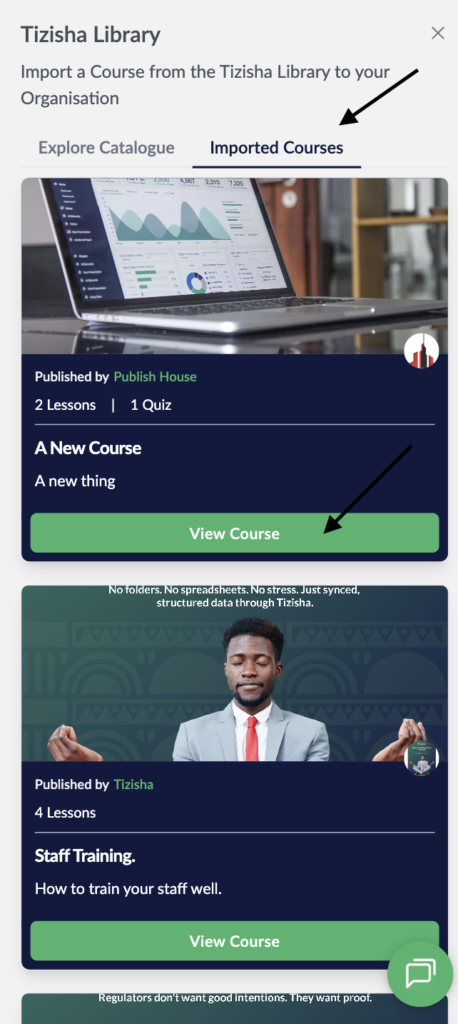
- If no update was made by the publisher, the button on the course card will remain green reading “View Course” but in the event there’s an update, the button will be orange and the text will read “Update Course”.
- You can then proceed to click on view course to have a look at all the changes made by the publisher.