
- Visit the Creator platform On your Phone/Tablet and on Desktop/Laptop and login.
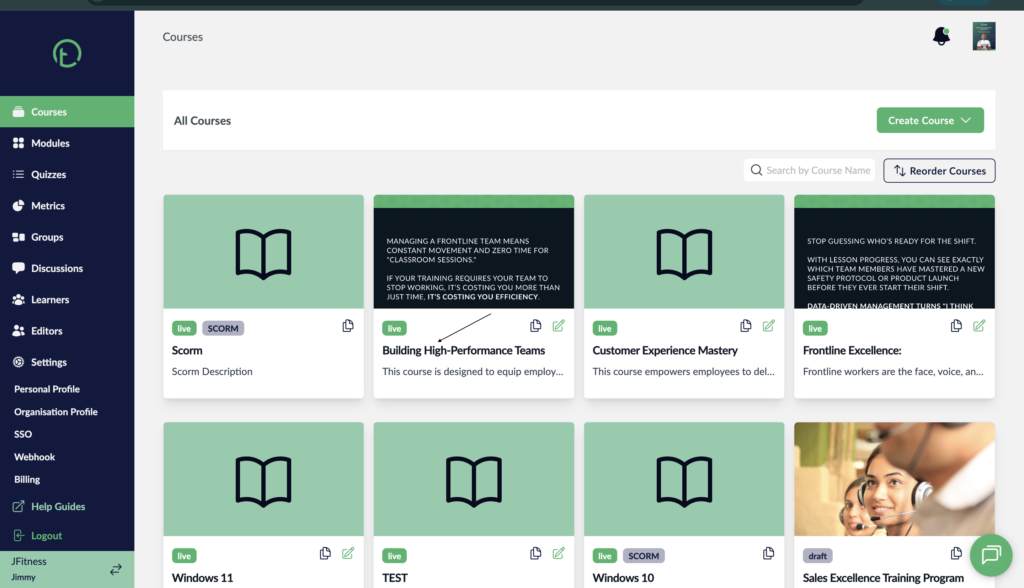
- On the courses page, select a Course.
Desktop View
Mobile View
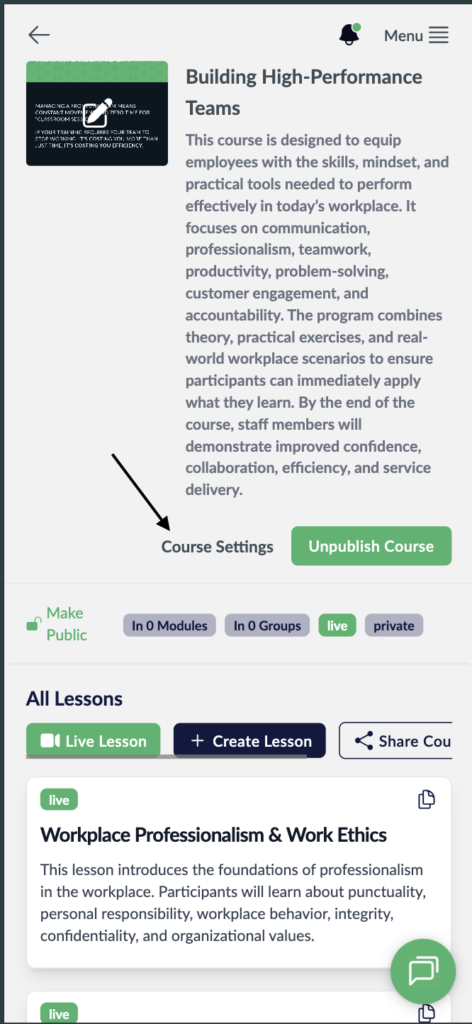
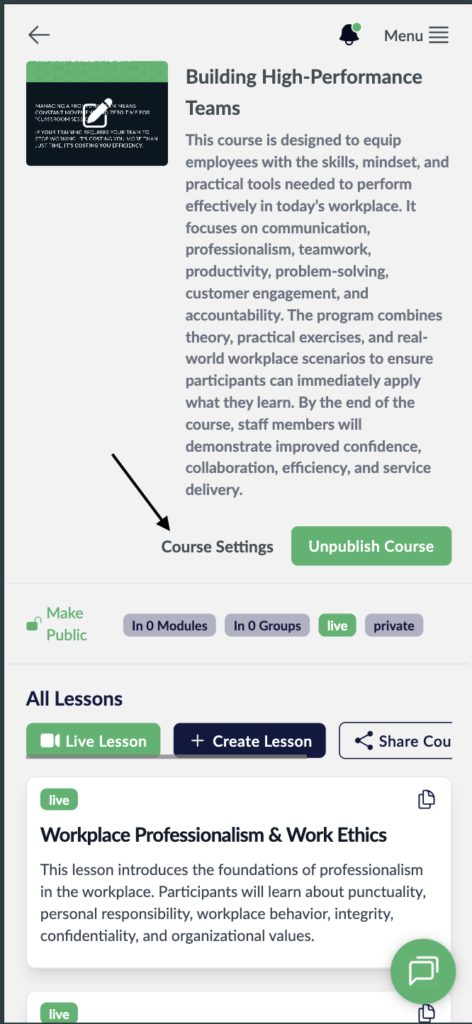
- Click on the Course settings link on the on the right side of your screen, just next to the Publish course button.
Desktop View

Mobile View
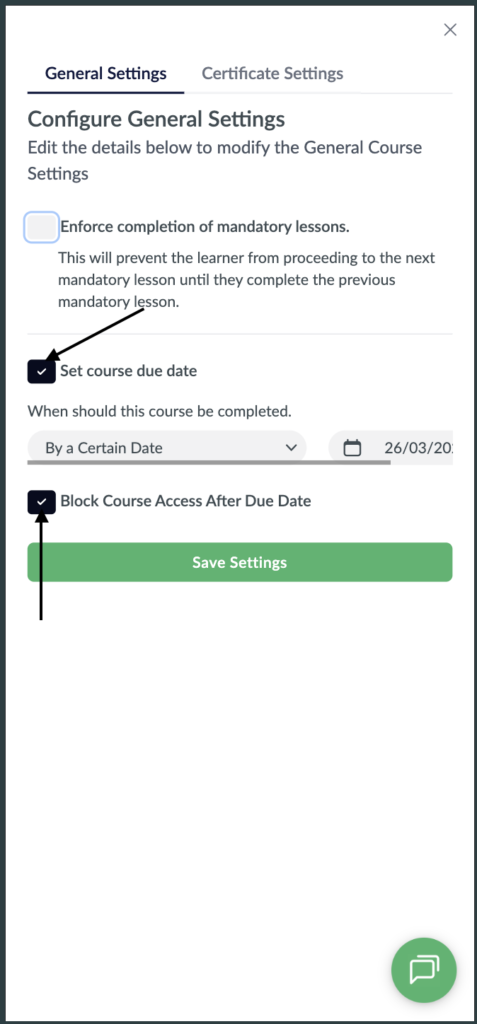
- You will see a pop up with some controls and checkboxes on it.
- Look for the one labelled “Set Course Due Date” and click on the radio Button next to it.
- You will notice another radio button shows up labelled “Block Course Access After Due Date”.
- Click on the radio button next to it and it will turn Black meaning you’ve activated that control.
- After setting your due dates and activating the “Block Course Access After Due Date” radio button, click Save settings.
Desktop View

Mobile View
- What. this feature does is after the course reaches its due date learners can no longer have access to it and it’s labelled “Locked”.
- You can Undo this feature by just clicking the radio button again and hit “Save Settings”.